Skip to content
  • MySensors
  • OpenHardware.io
  • Categories
  • Recent
  • Tags
  • Popular
Skins
  • Light
  • Brite
  • Cerulean
  • Cosmo
  • Flatly
  • Journal
  • Litera
  • Lumen
  • Lux
  • Materia
  • Minty
  • Morph
  • Pulse
  • Sandstone
  • Simplex
  • Sketchy
  • Spacelab
  • United
  • Yeti
  • Zephyr
  • Dark
  • Cyborg
  • Darkly
  • Quartz
  • Slate
  • Solar
  • Superhero
  • Vapor

  • Default (No Skin)
  • No Skin
Collapse
Brand Logo
petewillP

petewill

@petewill
Admin
About
Posts
484
Topics
21
Shares
0
Groups
4
Followers
25
Following
0

Posts

Recent Best Controversial

  • How To: Make a Simple/Cheap Scene Controller (with video)
    petewillP petewill

    Hi Everyone,

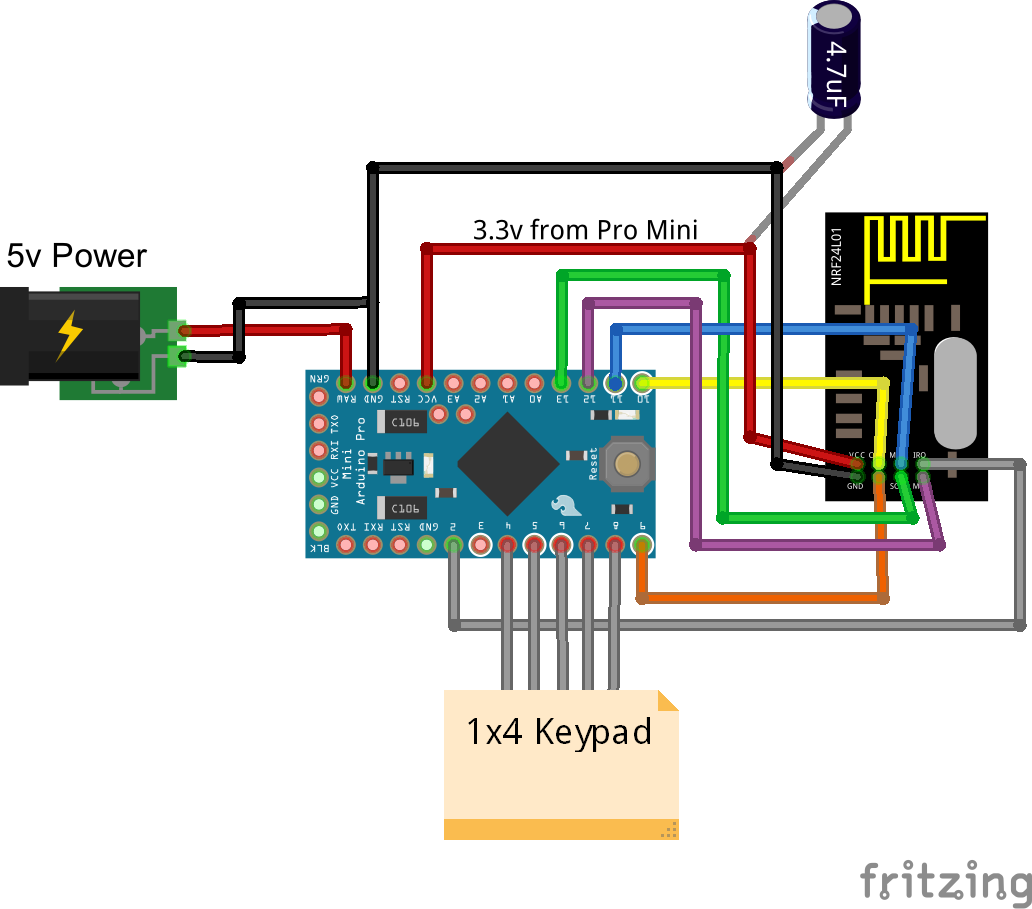
    I recently decided to make a very simple/cheap scene controller with a 1x4 membrane keypad. I normally try to automate as many things as I can but sometimes it's just nice to have some physical buttons. I have this in my bedroom so I can turn on/off lights, fans etc without having to open my eyes. Hopefully this will be of use to someone...

    Fritzing Scene Controller Wiring_bb.png

    https://youtu.be/KMGj5Bi7vL0

    /**
     * The MySensors Arduino library handles the wireless radio link and protocol
     * between your home built sensors/actuators and HA controller of choice.
     * The sensors forms a self healing radio network with optional repeaters. Each
     * repeater and gateway builds a routing tables in EEPROM which keeps track of the
     * network topology allowing messages to be routed to nodes.
     *
     * Created by Henrik Ekblad <henrik.ekblad@mysensors.org>
     * Copyright (C) 2013-2015 Sensnology AB
     * Full contributor list: https://github.com/mysensors/Arduino/graphs/contributors
     *
     * Documentation: http://www.mysensors.org
     * Support Forum: http://forum.mysensors.org
     *
     * This program is free software; you can redistribute it and/or
     * modify it under the terms of the GNU General Public License
     * version 2 as published by the Free Software Foundation.
     *
     *******************************
     *
     * REVISION HISTORY
     * Version 1.0 - PeteWill
     * 
     * DESCRIPTION
     * A simple scene controller for use with MySensors.  8 scenes can be executed.
     * 4 with short button presses and 4 with long button presses (held .5 seconds or more).
     * Watch a how to video here: https://youtu.be/KMGj5Bi7vL0 
     */
    
    #include <Keypad.h>
    #include <SPI.h>
    #include <MySensor.h>
    
    #define NODE_ID 14 // or set to AUTO if you want gw to assign a NODE_ID for you.
    #define SN "Scene Controller"
    #define SV "1.0"
    
    
    #define KEYPAD_CHILD_ID 0
    
    MySensor gw;
    MyMessage scene(KEYPAD_CHILD_ID, V_SCENE_ON);
    
    const byte ROWS = 4; //four rows
    const byte COLS = 1; //three columns
    char keys[ROWS][COLS] = {
      {'1'},
      {'2'},
      {'3'},
      {'4'}
    };
    
    byte rowPins[ROWS] = {6, 7, 4, 5}; //connect to the row pinouts of the keypad
    byte colPins[COLS] = {8}; //connect to the column pinouts of the keypad
    
    Keypad keypad = Keypad( makeKeymap(keys), rowPins, colPins, ROWS, COLS );
    byte lastState;
    
    
    void setup() {
      gw.begin(NULL, NODE_ID);
      gw.sendSketchInfo(SN, SV);
      gw.present(KEYPAD_CHILD_ID, S_SCENE_CONTROLLER);
      keypad.addEventListener(keypadEvent); // Add an event listener for this keypad
    }
    
    void loop() {
      char key = keypad.getKey();
    }
    
    void keypadEvent(KeypadEvent key) {
      switch (keypad.getState()) {
    
        case PRESSED:
          lastState = 1;
          break;
    
        case HOLD:
          lastState = 2;
          break;
    
        case RELEASED:
          int keyInt = key - '0'; //Quick way to convert Char to Int so it can be sent to controller
          if (lastState == 2) {
            keyInt = keyInt + 4; //If button is held, add 4.  If using more than 4 buttons this number will need to be changed
          }
          gw.send(scene.set(keyInt));
          break;
      }
    }
    

    Here is a link for a keypad: http://www.ebay.com/itm/171505110526?_trksid=p2057872.m2749.l2649&ssPageName=STRK%3AMEBIDX%3AIT

    Here is another option for a scene controller keypad contributed by @AWI. It has capacitive touch buttons and an interrupt to battery power can be used. Thanks @AWI!
    http://forum.mysensors.org/topic/2001/how-to-make-a-simple-cheap-scene-controller-with-video/14

    My Project

  • How To - Doorbell Automation Hack
    petewillP petewill

    Hi Everyone,

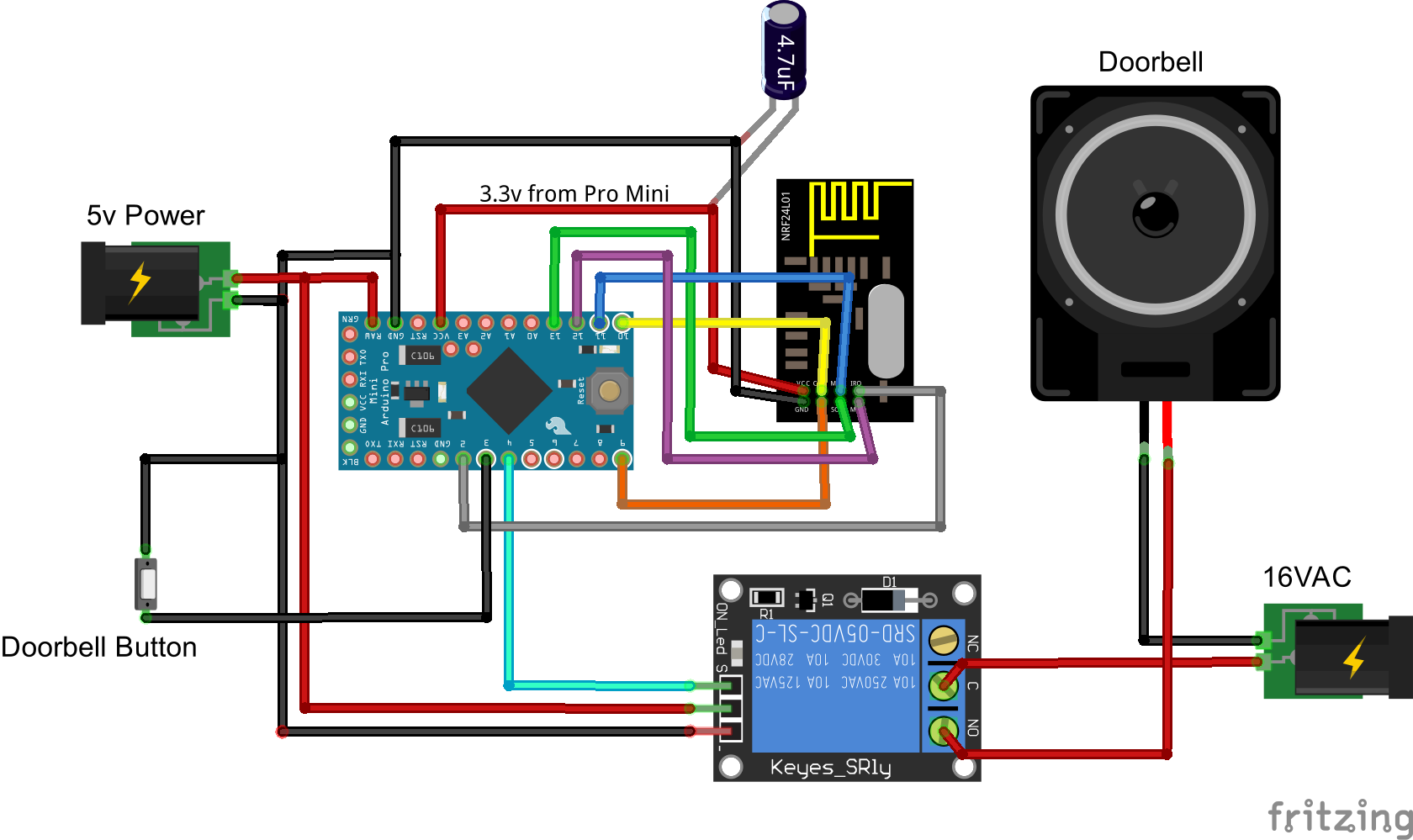
    I put together this quick how to video for hacking your doorbell to work with MySensors. It's pretty basic and the code is based on the Relay Actuator sketch. It has two main features: controlling if the doorbell rings with an on/off switch and sending a triggered state whenever it's pressed. The silence feature can be useful if a child (or you) is taking a nap. The triggered state can be used for many different things like starting a security camera, sending an alert or text message, playing custom sounds via Sonos or other device, etc. Another note, the doorbell will still function even if your home automation the controller is down for some reason.

    Here are the additional details:
    https://youtu.be/nMIcalwpstc

    Fritzing Doorbell Wiring_bb.png

    /*
     * The MySensors Arduino library handles the wireless radio link and protocol
     * between your home built sensors/actuators and HA controller of choice.
     * The sensors forms a self healing radio network with optional repeaters. Each
     * repeater and gateway builds a routing tables in EEPROM which keeps track of the
     * network topology allowing messages to be routed to nodes.
     *
     * Created by Henrik Ekblad <henrik.ekblad@mysensors.org>
     * Copyright (C) 2013-2015 Sensnology AB
     * Full contributor list: https://github.com/mysensors/Arduino/graphs/contributors
     *
     * Documentation: http://www.mysensors.org
     * Support Forum: http://forum.mysensors.org
     *
     * This program is free software; you can redistribute it and/or
     * modify it under the terms of the GNU General Public License
     * version 2 as published by the Free Software Foundation.
     *
     *******************************
     *
     * REVISION HISTORY
     * Version 1.0 - PeteWill
     *
     * DESCRIPTION
     * This sketch is used to control a doorbell ring with a relay as well as send an
     * alert when the buttons is pressed.  Connect the button to ground and digital
     * pin 3.  The relay controlling the doorbell is conntected to pin 4.
     * 
     * Watch the How To video here: https://youtu.be/nMIcalwpstc
     */
    
    
    #include <MySensor.h>
    #include <SPI.h>
    #include <Bounce2.h>
    
    #define NODE_ID 16 // or set to AUTO if you want gw to assign a NODE_ID for you.
    
    #define DOORBELL_PIN  3      // Arduino Digital I/O pin number for the doorbell button 
    #define RELAY_PIN  4         // Arduino Digital I/O pin number for the relay 
    #define DOORBELL_CHILD_ID 0  //ID of the doorbell
    #define SWITCH_CHILD_ID 1    // Id of the switch that will control doorbell sound
    #define RELAY_ON 1
    #define RELAY_OFF 0
    
    Bounce debouncer = Bounce();
    
    MySensor gw;
    MyMessage switchMsg(SWITCH_CHILD_ID, V_LIGHT);
    MyMessage doorbellMsg(DOORBELL_CHILD_ID, V_TRIPPED);
    
    unsigned int doorbellDelay = 1000; // interval at which to keep the doorbell button sensor triggered (milliseconds). This is used to stop people (kids) from pressing it too often
    unsigned int ringTime = 700; //How long the doorbell relay is on (in milliseconds)
    unsigned long doorbellMillis;  //Used to keep track of the last doorbell button press
    unsigned long doorbellTimer;  //Used to keep track of doorbell ring time
    byte doorbellPreviousVal;  //Used to keep track of doorbell button pressed state
    boolean ringDoorbell;  //Used to initiate the ring doorbell if statement
    boolean doorbellSound; //Used to keep track if the doorbell should sound or be silent.  Value recieved from doorbell on/off switch
    boolean doorbellOff = true;  //Used to keep track of doorbell ring state
    
    void setup()
    {
      gw.begin(incomingMessage, NODE_ID);
    
      // Send the sketch version information to the gateway and Controller
      gw.sendSketchInfo("Doorbell Monitor", "1.0");
    
      // Setup the button and activate internal pull-up
      pinMode(DOORBELL_PIN, INPUT_PULLUP);
    
      // After setting up the button, setup debouncer
      debouncer.attach(DOORBELL_PIN);
      debouncer.interval(5);
    
      // Register all sensors to gw (they will be created as child devices)
      gw.present(SWITCH_CHILD_ID, S_LIGHT);
      gw.present(DOORBELL_CHILD_ID, S_MOTION);
    
      // Make sure relays are off when starting up
      digitalWrite(RELAY_PIN, RELAY_OFF);
      // Then set relay pins in output mode
      pinMode(RELAY_PIN, OUTPUT);
    
      // Set doorbellSound to last known state (using eeprom storage)
      doorbellSound = gw.loadState(SWITCH_CHILD_ID);
    }
    
    void loop()
    {
      gw.process();
        unsigned long currentMillis = millis();
      //Check to see if doorbell button was pushed.
      if (currentMillis - doorbellMillis > doorbellDelay) //used to stop doorbell from being pressed too frequently
      {
        debouncer.update();
        // Read doorbell button value
        byte doorbellDetect = !debouncer.read();//read, then reverse the value so it will send correct trigger state to controller
    
        if (doorbellDetect != doorbellPreviousVal)
        {
          //Serial.print("doorbellDetect Value: ");
          //Serial.println(doorbellDetect);
          gw.send(doorbellMsg.set(doorbellDetect)); 
          if (doorbellDetect == 1)
          {
            ringDoorbell = true;
            doorbellTimer = currentMillis;
          }
          doorbellMillis = currentMillis;
          doorbellPreviousVal = doorbellDetect;
        }
      }
    
      if (ringDoorbell)
      {
        if (doorbellSound)
        {
          if (doorbellOff)
          {
            digitalWrite(RELAY_PIN, RELAY_ON);
            //Serial.println("Doorbell sounded.");
            doorbellOff = false;
          }
          else
          {
            if (currentMillis - doorbellTimer > ringTime)
            {
              ringDoorbell = false;
              digitalWrite(RELAY_PIN, RELAY_OFF);
              //Serial.println("Doorbell off.");
              doorbellOff = true;
            }
          }
        }
      }
    }
    
      void incomingMessage(const MyMessage & message) {
        // We only expect one type of message from controller. But we better check anyway.
        if (message.isAck()) {
          Serial.println("This is an ack from gateway");
        }
    
        if (message.type == V_LIGHT) {
          // Change relay state
          doorbellSound = message.getBool();
          // Store state in eeprom
          gw.saveState(SWITCH_CHILD_ID, doorbellSound);
    
          // Write some debug info
          Serial.print("Incoming change for sensor:");
          Serial.print(message.sensor);
          Serial.print(", New status: ");
          Serial.println(message.getBool());
        }
      }
    
    My Project

  • Video How To - Phoney TV
    petewillP petewill

    Hi Everyone,

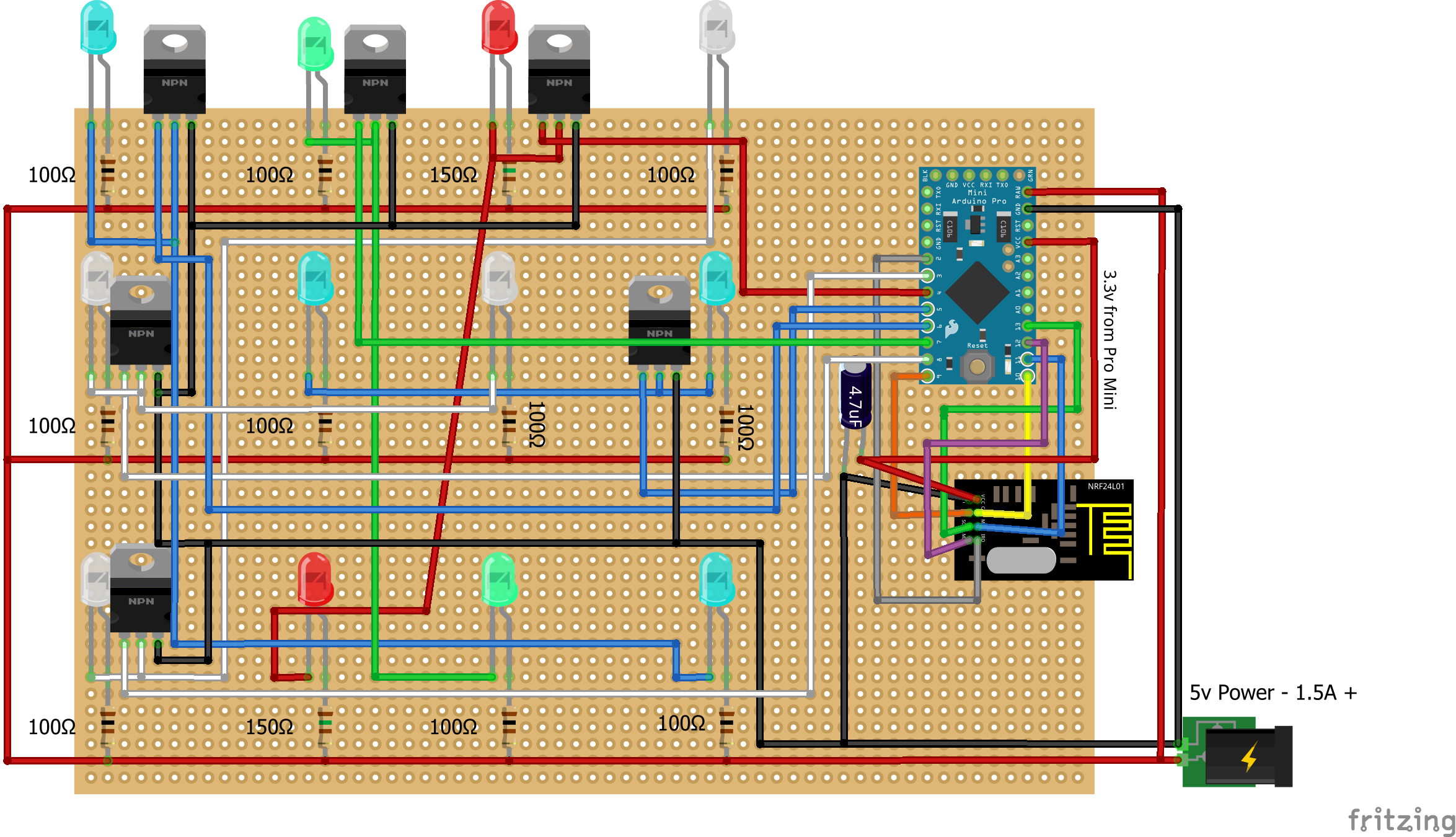
    Here is a how to video for building Jim's (@BulldogLowell) awesome PhoneyTV project. We thought it would be the most straight forward to start a new thread so everything can be compiled into the first post but make sure you check out Jim's original work here: http://forum.mysensors.org/topic/85/phoneytv-for-vera-is-here
    You can see all the details of his build (including his cool enclosure) as well as the input from others there.

    Ok, here is the info you need to build this project:

    https://youtu.be/p37qnl8Kjfc

    0_1472736979528_Fritzing PhoneyTV Wiring.png

    /*
     * PhoneyTV v3.1.1
     *
     * This Sketch illuminates 6 sets of LED's in a random fashion as to mimic the
     * light eminating from a television.  It is intended to make an empty home,
     * or an empty section of a home, appear to be occupied by someone watching
     * TV.  As an alternative to a real television left on, this uses less than 1%
     * of the electrical energy.
     *
     * With the use of the MySensors plugin and gateway, PhoneyTV is intended to
     * be used with a controller (e.g. Vera or Raspberry PI).
     *
     * Sketch does not use any delays to create the random blinking as a way to
     * assure that communication back to the gateway is as unaffected as possible.
     *
     * You can adjust the length of the blink interval and its "twitchyness" by
     * modifying the random number generators, if you prefer more/less 'motion' in
     * in your unit.  The lines are highlighted in the code, play around to create the
     * random effect you like.
     *
     * Sketch takes advantage of available PWM on pins 3, 5 & 6 using the white/blue LEDs
     * to allow fluctuations in the intensity of the light, enhancing the PhoneyTV's
     * realistic light effects.
     *
     * Created 12-APR-2014
     * Free for distrubution
     * Credit should be given to MySensors.org for their base code for relay control
     * and for the radio configuration.  Thanks Guys.
     *
     * 29-May-2014
     * Version 2:  Simplified the code, removing all redundant relay setup from original
     * code.  Added an on/off momentary pushputton option to be set up on pin 2.  Inproved
     * the dark dips for longer duration (can be configured) at intervals.
     *
     * 6-Jun-2015
     * Version 3.1
     * Updated for MySensors V1.4.1
     * Contributed by Jim (BulldogLowell@gmail.com) Inspired by Josh >> Deltanu1142@gmail.com
     *
     * How to video: https://youtu.be/p37qnl8Kjfc
     */
    //
    #include <MySensor.h>
    #include <SPI.h>
    #include <Bounce2.h>
    //
    #define SKETCH_NAME "PhoneyTV"
    #define SKETCH_VERSION "3.1.1"
    //
    #define RADIO_RESET_DELAY_TIME 20
    //
    #define BUTTON_PIN  2  // Arduino Digital I/O pin number for button 
    #define CHILD_ID 1   // 
    #define RADIO_ID 5  //AUTO
    //
    #define DEBUG_ON
    //
    #ifdef DEBUG_ON
    #define DEBUG_PRINT(x)   Serial.print(x)
    #define DEBUG_PRINTLN(x) Serial.println(x)
    #define SERIAL_START(x)  Serial.begin(x)
    #else
    #define DEBUG_PRINT(x)
    #define DEBUG_PRINTLN(x)
    #define SERIAL_START(x)
    #endif
    //
    MySensor gw;
    MyMessage msg(CHILD_ID, V_LIGHT);
    //
    byte ledPin3 =  3;      // White using PWM
    byte ledPin4 =  4;      // Red
    byte ledPin5 =  5;      // Blue using PWM
    byte ledPin6 =  6;      // Blue using PWM
    byte ledPin7 =  7;      // Green
    byte ledPin8 =  8;      // White (No PWM)
    //
    Bounce debouncer = Bounce();
    byte oldValue = 0;
    boolean state = false;
    boolean oldState = false;
    int dipInterval = 10;
    int darkTime = 250;
    unsigned long currentDipTime;
    unsigned long dipStartTime;
    unsigned long currentMillis;
    byte ledState = LOW;
    unsigned long previousMillis = 0UL;
    byte led = 5;
    unsigned long interval = 2000UL;
    int twitch = 50;
    int dipCount = 0;
    int analogLevel = 100;
    boolean timeToDip = false;
    boolean gotAck=false;
    //
    void setup()
    {
      SERIAL_START(115200);
      pinMode(ledPin3, OUTPUT);
      pinMode(ledPin4, OUTPUT);
      pinMode(ledPin5, OUTPUT);
      pinMode(ledPin6, OUTPUT);
      pinMode(ledPin7, OUTPUT);
      pinMode(ledPin8, OUTPUT);
      pinMode(BUTTON_PIN, INPUT_PULLUP);
      //
      debouncer.attach(BUTTON_PIN);
      debouncer.interval(50);
      //
      gw.begin(incomingMessage, RADIO_ID, true, 0);  // configured as a repeating node!!
      gw.sendSketchInfo(SKETCH_NAME, SKETCH_VERSION);
      gw.wait(RADIO_RESET_DELAY_TIME);
      gw.present(CHILD_ID, S_LIGHT);
      gw.wait(RADIO_RESET_DELAY_TIME);
      while(!gw.send(msg.set(state), false))
      {
    	gw.wait(RADIO_RESET_DELAY_TIME);
      }
      gw.wait(RADIO_RESET_DELAY_TIME);
      DEBUG_PRINTLN(F("Sensor Presentation Complete"));
    }
    //
    void loop()
    {
      gw.process();
      debouncer.update();
      byte value = debouncer.read();
      if (value != oldValue && value == 0)
      {
    	state = !state;
    	while(!gotAck)
    	{
    	  gw.send(msg.set(state), true);
    	  gw.wait(RADIO_RESET_DELAY_TIME);
    	}
    	gotAck = false;
    	DEBUG_PRINT(F("State Changed to:"));
    	DEBUG_PRINTLN(state? F("PhoneyTV ON") : F("PhoneyTV OFF"));
      }
      oldValue = value;
      if (state)
      {
    	if (timeToDip == false)
    	{
    	  currentMillis = millis();
    	  if (currentMillis - previousMillis > interval)
    	  {
    		previousMillis = currentMillis;
    		interval = random(750, 4001); //Adjusts the interval for more/less frequent random light changes
    		twitch = random(40, 100); // Twitch provides motion effect but can be a bit much if too high
    		dipCount = dipCount++;
    	  }
    	  if (currentMillis - previousMillis < twitch)
    	  {
    		led = random(3, 9);
    		analogLevel = random(50, 255); // set the range of the 3 pwm leds
    		ledState = !ledState;
    		switch (led) //for the three PWM pins
    		{
    		  case 3:
    			pwmWrite();
    			break;
    		  case 5:
    			pwmWrite();
    			break;
    		  case 6:
    			pwmWrite();
    			break;
    		  default:
    			digitalWrite(led, ledState);
    		}
    		if (dipCount > dipInterval)
    		{
    		  timeToDip = true;
    		  dipCount = 0;
    		  dipStartTime = millis();
    		  darkTime = random(50, 150);
    		  dipInterval = random(5, 250); // cycles of flicker
    		}
    	  }
    	}
    	else
    	{
    	  DEBUG_PRINTLN(F("Dip Time"));
    	  currentDipTime = millis();
    	  if (currentDipTime - dipStartTime < darkTime)
    	  {
    		for (int i = 3; i < 9; i++)
    		{
    		  digitalWrite(i, LOW);
    		}
    	  }
    	  else
    	  {
    		timeToDip = false;
    	  }
    	}
      }
      else
      {
    	if (state != oldState)
    	{
    	  for (int i = 3; i < 9; i++)
    	  {
    		digitalWrite(i, LOW);
    	  }
    	}
      }
      oldState = state;
    }
    //
    void incomingMessage(const MyMessage &message)
    {
      if (message.isAck())
      {
    	DEBUG_PRINTLN(F("This is an ack from gateway"));
    	gotAck = true;
      }
      if (message.type == V_LIGHT)
      {
    	state = message.getBool();
    	DEBUG_PRINT(F("Incoming change for sensor... New State = "));
    	DEBUG_PRINTLN(state? F("ON") : F("OFF"));
      }
    }
    //
    void pwmWrite()
    {
      if (ledState == HIGH) 
      {
    	analogWrite(led, analogLevel);
      }
      else 
      {
    	digitalWrite(led, LOW);
      }
    }
    

    Parts List

    • 10 - 100 Ohm 1/2 watt Resistors - http://www.ebay.com/itm/20pcs-1-2W-0-5W-Watt-Metal-Film-Resistor-1-36-47-100-360-470-560-680-820-OHM-/361402983317?var=&hash=item54254be395:m:myWupCGR_EGHbEjk3g4ixZg
    • 2 - 150 Ohm 1/2 watt Resistors - http://www.ebay.com/itm/20pcs-1-2W-0-5W-Watt-Metal-Film-Resistor-1-36-47-100-360-470-560-680-820-OHM-/361402983317?var=&hash=item54254be395:m:myWupCGR_EGHbEjk3g4ixZg
    • 9cm x 15cm PCB Board - http://www.ebay.com/itm/1x-Double-Side-Protoboard-9cm-x15cm-PCB-Experiment-Matrix-Circuit-Board-WWU-/231693193879?hash=item35f1fd9297:g:cGEAAOSwKIpV~GH8
    • 6 - MOSFET Transistors - http://www.digikey.com/product-detail/en/0/785-1568-5-ND
    • 4 - 1/2 watt super-bright 10mm Red, Green, Blue & White LEDs -
      http://www.ebay.com/itm/25pcs-10mm-0-5W-Red-Yellow-Blue-Green-White-40-Large-Chip-Water-Clear-LED-Leds-/321548049284?hash=item4addc1db84
    • 4.7 uf Capacitor - Assorted Capacitors in the MySensors store http://www.mysensors.org/store/#components
    • Pro Mini (3.3v) - http://www.mysensors.org/store/#arduinos
    • NRF24L01+ Radio - http://www.mysensors.org/store/#radios
    • Cat5/6 cable
    • Old phone charger
    • USB cord
    My Project

  • Video How To - Monitor your Refrigerator
    petewillP petewill

    2016-12-31 Edit: Updated code to MySensors Version 2.1 and added LEDs for door status (optional).

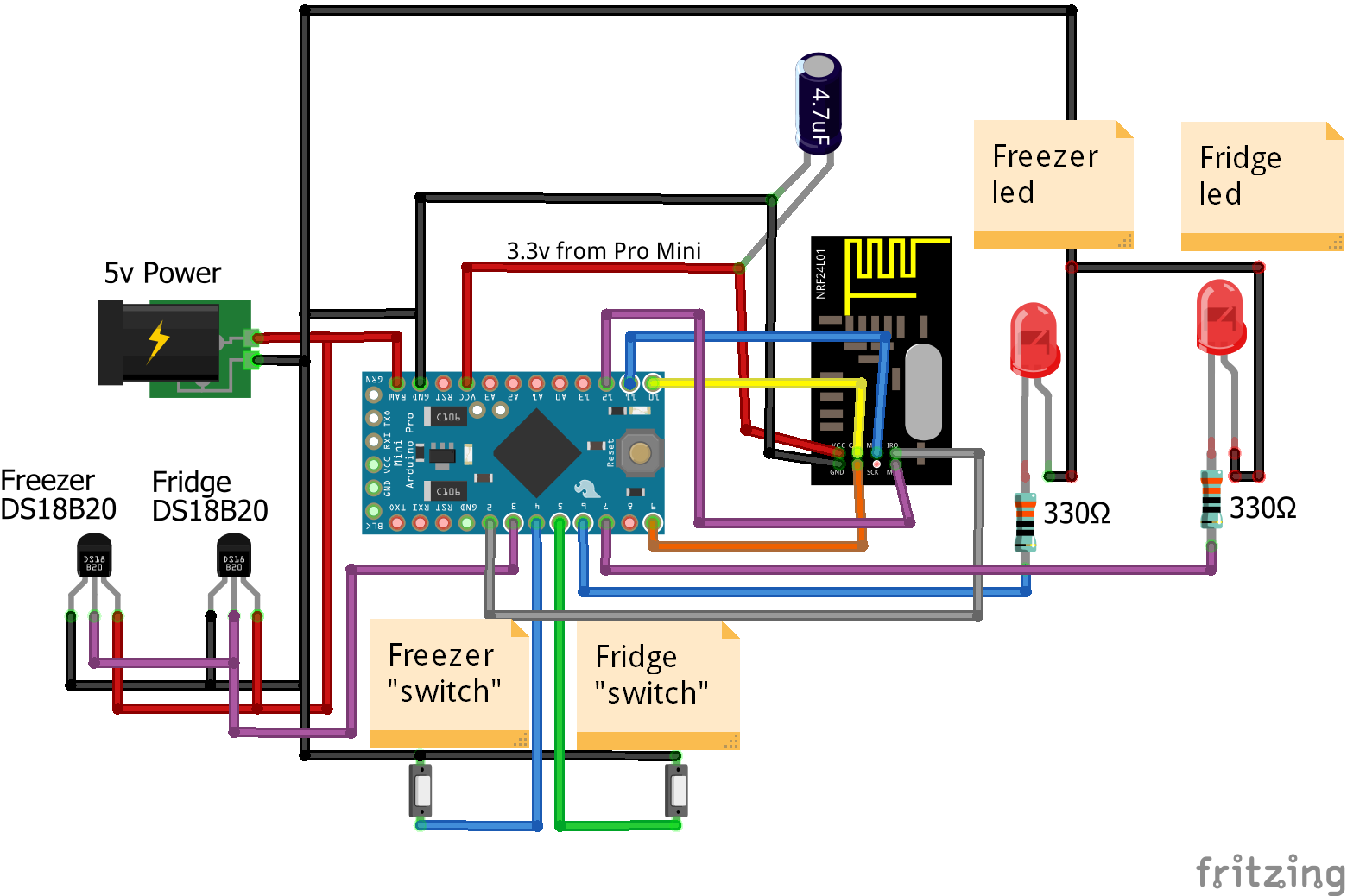
    Recently we have been having problems with our refrigerator door not fully closing. Usually it's a result of something not pushed fully in and it stops the door from closing. Our fridge is old and doesn't have any built in alarms so I thought I'd "MySensorize" it so we get alerts if the door says open. I also added some Dallas Temp sensors to monitor the temperature. Nothing to advanced or sophisticated but it gets the job done.

    https://youtu.be/2vAYAbtQfjs

    Fritzing Fridge Monitoring Wiring

    Parts List

    • 4.7 uf Capacitor - Assorted Capacitors in the MySensors store http://www.mysensors.org/store/#components
    • Pro Mini (3.3v) - http://www.mysensors.org/store/#arduinos
    • NRF24L01+ Radio - http://www.mysensors.org/store/#radios
    • 2x DS18B20 Dallas Temperature Sensors - http://www.mysensors.org/store/#temperature
    • Copper Tape - http://www.ebay.com/itm/5mm-X-30m-1-Roll-EMI-Copper-Foil-Shielding-Tape-Conductive-Self-Adhesive-Barrier-/121621527850?hash=item1c51353d2a:g:EOAAAOSwpDdVK347
    • Female Dupont Cables - http://www.mysensors.org/store/#cables
    • Cat5/6 cable
    • Old USB cable (use the individual wires inside for the Dallas temp sensors)
    • Old phone charger (or some sort of 5v power supply)

    Here is the code to find your Dallas Temp Sensor addresses. I chose to find the addresses and program them in based on recommendations from the DS18B20 datasheet. You could change the Refrigerator Monitoring code to have it automatically find them each time the device is powered up if you prefer.

    #include <OneWire.h>
    #include <DallasTemperature.h>
    
    // Data wire is plugged into port 2 on the Arduino
    #define ONE_WIRE_BUS 3 //Pin where Dallas sensor is connected
    
    // Setup a oneWire instance to communicate with any OneWire devices (not just Maxim/Dallas temperature ICs)
    OneWire oneWire(ONE_WIRE_BUS);
    
    // Pass our oneWire reference to Dallas Temperature.
    DallasTemperature dallasTemp(&oneWire);
    
    // arrays to hold device addresses
    DeviceAddress tempAddress[7];
    
    void setup(void)
    {
      // start serial port
      Serial.begin(115200);
    
      // Start up the library
      dallasTemp.begin();
    
      // show the addresses we found on the bus
      for (uint8_t i = 0; i < dallasTemp.getDeviceCount(); i++) {
        if (!dallasTemp.getAddress(tempAddress[i], i))
        {
          Serial.print("Unable to find address for Device ");
          Serial.println(i);
          Serial.println();
        }
        Serial.print("Device ");
        Serial.print(i);
        Serial.print(" Address: ");
        printAddress(tempAddress[i]);
        Serial.println();
      }
    }
    
    void printAddress(DeviceAddress deviceAddress)
    {
      for (uint8_t i = 0; i < 8; i++)
      {
        // zero pad the address if necessary
        //if (deviceAddress[i] < 16) Serial.print("0");
        Serial.print("0x");
        Serial.print(deviceAddress[i], HEX);
        if (i < 7) {
          Serial.print(", ");
        }
      }
    }
    
    
    void loop(void)
    {
    
    }
    

    And here is the code for the Fridge monitoring

    /*
       The MySensors Arduino library handles the wireless radio link and protocol
       between your home built sensors/actuators and HA controller of choice.
       The sensors forms a self healing radio network with optional repeaters. Each
       repeater and gateway builds a routing tables in EEPROM which keeps track of the
       network topology allowing messages to be routed to nodes.
    
       Created by Henrik Ekblad <henrik.ekblad@mysensors.org>
       Copyright (C) 2013-2015 Sensnology AB
       Full contributor list: https://github.com/mysensors/Arduino/graphs/contributors
    
       Documentation: http://www.mysensors.org
       Support Forum: http://forum.mysensors.org
    
       This program is free software; you can redistribute it and/or
       modify it under the terms of the GNU General Public License
       version 2 as published by the Free Software Foundation.
    
     *******************************
    
       REVISION HISTORY
       Version 1.0 - PeteWill
       2016-12-29 Version 1.1 - PeteWill Updated to MySensors 2.1 and added status LEDs for the doors
    
       DESCRIPTION
       This sketch is used to monitor your refrigerator temperature and door states.
       You will need to find the addresses for your Dallas temp sensors and change them in the dallasAddresses array
    
       Watch the How To video here: https://youtu.be/2vAYAbtQfjs
    */
    
    
    //#include <SPI.h>
    #include <DallasTemperature.h>
    #include <OneWire.h>
    #include <Bounce2.h>
    
    
    //MySensors configuration options
    //#define MY_DEBUG //Uncomment to enable MySensors related debug messages (additional debug options  are below)
    #define MY_RADIO_NRF24 // Enable and select radio type attached
    //#define MY_NODE_ID 1  //Manually set the node ID here. Comment out to auto assign
    #include <MySensors.h>
    
    #define SKETCH_NAME "Refrigerator Monitor"
    #define SKETCH_VERSION "1.1"
    
    #define DWELL_TIME 70 //value used in all wait calls (in milliseconds) this allows for radio to come back to power after a transmission, ideally 0
    
    
    #define ONE_WIRE_BUS 3 // Pin where dallas sensors are connected 
    #define TEMPERATURE_PRECISION 12  //The resolution of the sensor
    
    OneWire oneWire(ONE_WIRE_BUS); // Setup a oneWire instance to communicate with any OneWire devices (not just Maxim/Dallas temperature ICs)
    DallasTemperature dallasTemp(&oneWire); // Pass our oneWire reference to Dallas Temperature.
    
    //MySensor gw;
    unsigned long tempDelay = 425000;
    float lastTemperature[2];
    unsigned long tempMillis;
    bool metric = false;
    
    // arrays to hold device addresses
    DeviceAddress dallasAddresses[] = {
      {0x28, 0xD0, 0xD3, 0x41, 0x7, 0x0, 0x0, 0xDF}, //Freezer Address -- Modify for your sensors
      {0x28, 0xFF, 0x22, 0xA0, 0x68, 0x14, 0x3, 0x2F} //Fridge Address -- Modify for your sensors
    };
    
    //Set up debouncer (used for door sensors)
    Bounce debouncer[] = {
      Bounce(),
      Bounce()
    };
    
    //Make sure to match the order of doorPins to doorChildren.
    //The pins on your Arduino
    int doorPins[] = {4, 5};
    //The child ID that will be sent to your controller
    int doorChildren[] = {2, 3};
    //Freezer temp will be Child 0 and Fridge temp will be Child 1
    
    //used to keep track of previous values contact sensor values
    uint8_t oldValueContact[] = {1, 1};
    
    uint8_t doorLedPins[] = {6, 7};
    
    // Initialize temperature message
    MyMessage dallasMsg(0, V_TEMP);
    MyMessage doorMsg(0, V_TRIPPED);
    
    void presentation()  
    { 
      // Send the sketch version information to the gateway
      sendSketchInfo(SKETCH_NAME, SKETCH_VERSION);
      
      // Register all sensors to gw (they will be created as child devices)
      // Present temp sensors to controller
      for (uint8_t i = 0; i < 2; i++) {
        present(i, S_TEMP);
        wait(DWELL_TIME);
      }
      // Present door sensors to controller
      for (uint8_t i = 0; i < 2; i++) {
        present(doorChildren[i], S_DOOR);
        wait(DWELL_TIME);
      }
    }
    
    void setup()
    {
      // Startup OneWire
      dallasTemp.begin();
    
      // set the temp resolution
      for (uint8_t i = 0; i < 2; i++) {
        dallasTemp.setResolution(dallasAddresses[i], TEMPERATURE_PRECISION);
      }
    
    //  // Startup and initialize MySensors library. Set callback for incoming messages.
    //  gw.begin(NULL, NODE_ID);
    //
    //  // Send the sketch version information to the gateway and Controller
    //  gw.sendSketchInfo(SKETCH_NAME, SKETCH_VERSION);
    
      //Set up door contacts & LEDs
      for (uint8_t i = 0; i < 2; i++) {
    
        // Setup the pins & activate internal pull-up
        pinMode(doorPins[i], INPUT_PULLUP);
    
        // Activate internal pull-up
        //digitalWrite(doorPins[i], HIGH);
    
        // After setting up the button, setup debouncer
        debouncer[i].attach(doorPins[i]);
        debouncer[i].interval(700); //This is set fairly high because when my door was shut hard it caused the other door to bounce slightly and trigger open.
    
        //Set up LEDs
        pinMode(doorLedPins[i], OUTPUT);
        digitalWrite(doorLedPins[i], LOW);
      }
    
    
    }
    
    
    void loop()
    {
      unsigned long currentMillis = millis();
    
      if (currentMillis - tempMillis > tempDelay) {
        // Fetch temperatures from Dallas sensors
        dallasTemp.requestTemperatures();
    
        // Read temperatures and send them to controller
        for (uint8_t i = 0; i < 2; i++) {
    
          // Fetch and round temperature to one decimal
          float temperature = static_cast<float>(static_cast<int>((metric ? dallasTemp.getTempC(dallasAddresses[i]) : dallasTemp.getTempF(dallasAddresses[i])) * 10.)) / 10.;
          // Only send data if temperature has changed and no error
          if (lastTemperature[i] != temperature && temperature != -127.00) {
    
            // Send in the new temperature
            send(dallasMsg.setSensor(i).set(temperature, 1));
            lastTemperature[i] = temperature;
          }
        }
        tempMillis = currentMillis;
      }
    
      for (uint8_t i = 0; i < 2; i++) {
        debouncer[i].update();
        // Get the update value
        uint8_t value = debouncer[i].read();
        if (value != oldValueContact[i]) {
          // Send in the new value
          send(doorMsg.setSensor(doorChildren[i]).set(value == HIGH ? "1" : "0"));
          digitalWrite(doorLedPins[i], value);
          oldValueContact[i] = value;
        }
      }
    
    }


    My Project

  • Low Voltage Whole House Power Supply
    petewillP petewill

    After using my low voltage whole house power supply for a couple years I finally made a video about it. It's pretty simple and cheap (assuming you can get a free/recycled computer power supply) but has served me well. I use it to power my blinds, lights, motion sensors, etc. all around my house. It uses a computer power supply and provides me with 12v, 5v and 3.3v DC power. Use this at your own risk and make sure to check out the Voltage Drop Calculator and Wire Gauge Calculator sites to make sure your wires are the correct gauge.

    https://youtu.be/KRjdAZV4sh0

    Parts list
    Computer Power Supply
    Fuse Block
    Push-on Terminals
    1A Fuses
    Wire - 16 Gauge
    Ground Bar

    My Project

  • $8 Lamp (Outlet) "Smart Plug" Module
    petewillP petewill

    Hi All,

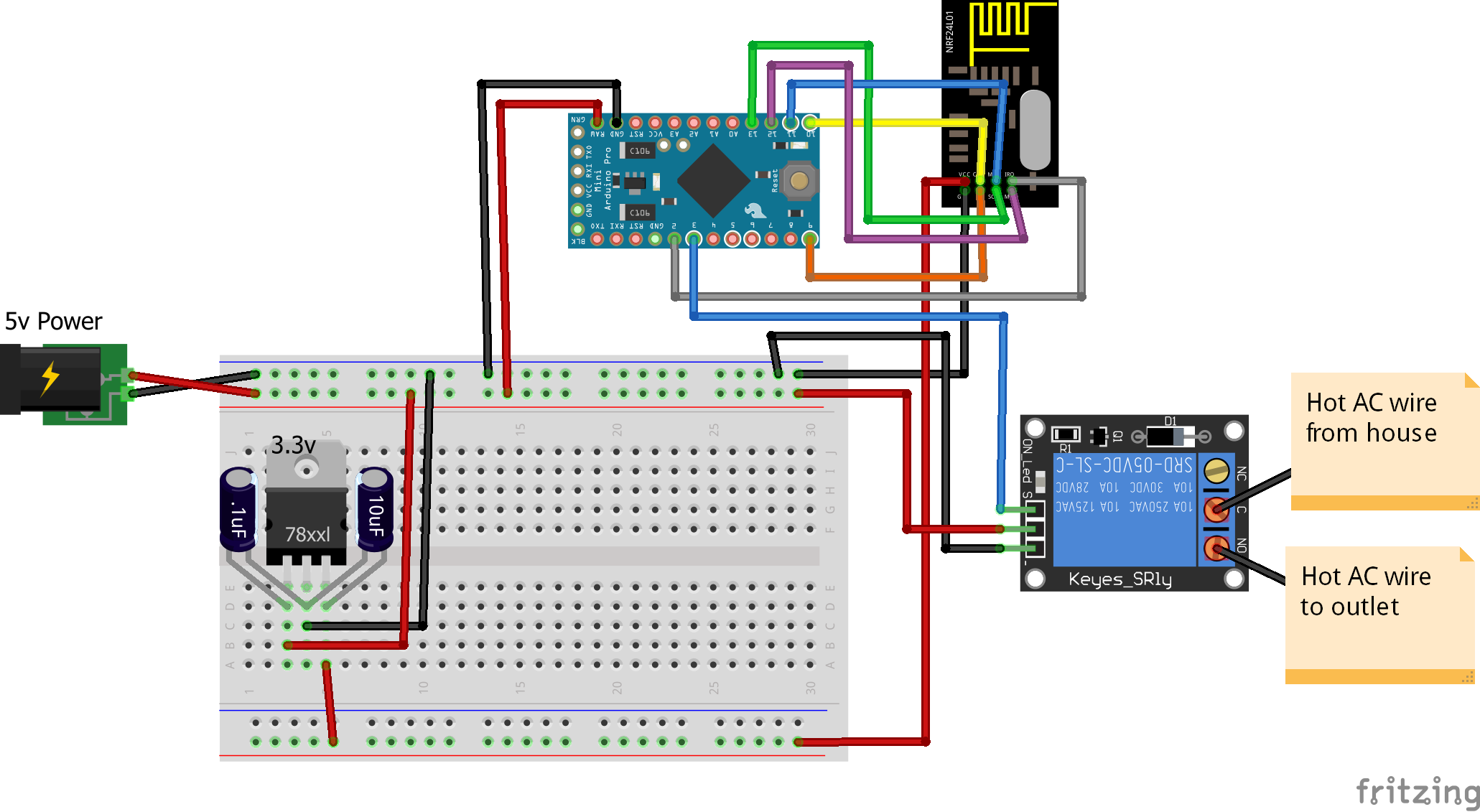
    I created a second "Smart Plug" and thought I'd make a how to video this time. I have found them very useful for controlling various devices around the house. It's long but hopefully will be good for everyone including those not too familiar with MySensors. I know when I was first starting out I had little to no experience with any of this stuff and it was hard to piece it all together.

    http://youtu.be/oNpMDN4QqD8

    Here is the parts list (most of this stuff can be obtained from the my sensors store so don't forget to support them!)

    • 1 Gang Outlet Box
    • Outlet
    • Computer power cord or extension cord
    • Old cell phone charger or some other 5v power supply
    • Items from MySensors Store http://www.mysensors.org/store/
    • 22-24 gauge wire or similar (network cord)
    • Female Pin Header Connector Strip
    • Prototype Universal Printed Circuit Board
    • NRF24L01 Radio
    • Arduino Pro Mini
    • Capacitors (10uf and .1uf)
    • 3.3v voltage regulator
    • Female Dupont cables

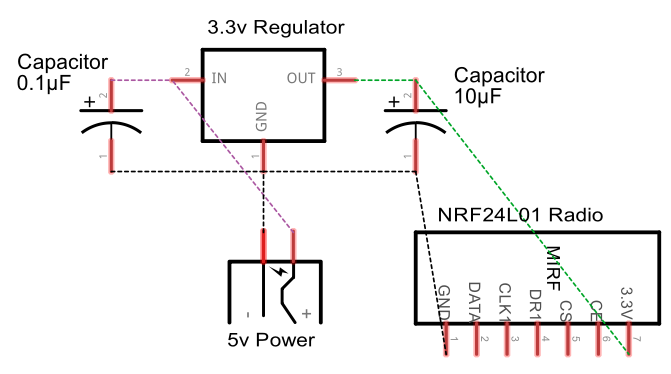
    Here is a wiring diagram for the 3.3v regulator:
    Voltage Regulator Schematic.png

    0_1467849909161_Fritzing Smart Outlet.png

    Here is the code I used. I made a few customizations but the example "Relay Actuator" code can be used as well.
    https://codebender.cc/sketch:72358

    *edited to add wiring diagram

    My Project

  • Video How To: Battery Powered Chair Occupancy (Contact) Sensor
    petewillP petewill

    I finally got around to making my first battery powered sensor (after 3+ years :grimacing: ) and I thought I'd make a video on how I did it. I'm amazed how easy it was and I'm not sure why I didn't do this sooner… I am using the sensor to monitor my dining room chairs so I can better automate the lights in that room (check out the video for more details).

    If my calculations are correct (and it's entirely possible they aren't) this sensor should run for about 3 years on 2 AA Alkaline batteries. Here is my math if anyone is interested (or wants to correct it). NOTE: I had an issue with one of my radios where it was using a couple if mA when sleeping so make sure you check your setup before finalizing the device so your batteries don't drain in a couple of weeks. You should be getting about 6uA when your Pro Mini is sleeping.

    Usage when sleeping =

    • 5.8uA (0.0058mA) when contact sensor is open/disconnected
    • 10uA when contact sensor is closed/connected with a 1M external pullup resistor
    • 100uA when contact sensor is closed/connected with internal pullup resistor

    Usage when transmitting =

    • 16mA with the NRF radio set to LOW

    I'm estimating a total of 10 transmissions per meal (5 times sitting/getting up). Just for good measure I'll say there will be 4 meals a day which would equal 40 transmissions per day. The sensor is also sending a battery level every 4 hours which would give an additional 6 transmissions. So that would give a total of 46 transmissions per day. So, 40/24=1.6667 transmissions per hour with it sleeping the rest of the time.

    Here is the equation to get the average mA:
    Iavg = (mA x time awake) + (mA x time asleep) / ( 1 hour)
    Iavg = (16mA x (1.67 x 2 seconds per transmission) + (.006mA x (1 hour - awake time)) / (7200sec)
    Iavg = (16x3.34) + (.006x7196.66) / 7200 = 53.446 mA per hour
    Iavg = 53.446 mA per hour

    Battery Life = Battery Capacity in Milli amps per hour / Load Current in Mill amps * 0.70
    From http://www.digikey.com/en/resources/conversion-calculators/conversion-calculator-battery-life

    Alkaline batteries should get around 985 days (32 months). AA alkaline batteries typically have a capacity rating of over 2,500 mAh (each).

    Ok, enough of that. Let's get on with the building…

    Build Video
    https://youtu.be/uz3nBkRKSkk

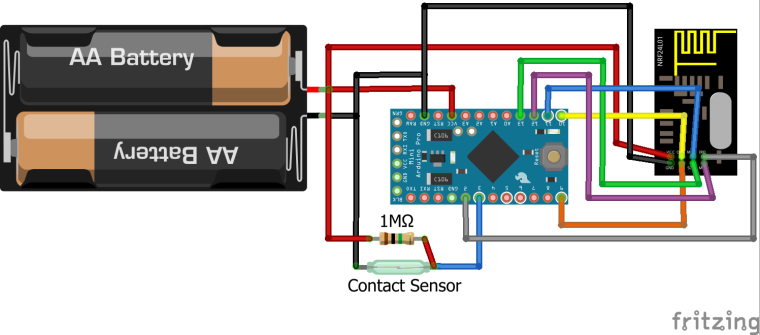
    Wiring Diagram
    0_1493422745392_Fritzing Chair Occupancy Sensor.png

    Parts Needed (BOM)
    3.3v Arduino Pro Mini
    NRF24L01+ Radio
    1M Ohm Resistor
    Battery holder (eBay) or Battery holder (3D print)
    Contact Sensor:

    • Reed sensor
      or
    • Copper tape
    • Metal flashing (local home goods store)

    Links/Credits
    Arduino_VCC Library link - https://github.com/Yveaux/Arduino_Vcc
    Gert Sanders Bootloader's - https://www.openhardware.io/view/33/Various-bootloader-files-based-on-Optiboot-62
    MySensors Battery Build Page - https://www.mysensors.org/build/battery

    Code
    NOTE:
    Minimum MySensors Library build of 2.2 is recommended for this sensor

    /**
       The MySensors Arduino library handles the wireless radio link and protocol
       between your home built sensors/actuators and HA controller of choice.
       The sensors forms a self healing radio network with optional repeaters. Each
       repeater and gateway builds a routing tables in EEPROM which keeps track of the
       network topology allowing messages to be routed to nodes.
    
       Created by Henrik Ekblad <henrik.ekblad@mysensors.org>
       Copyright (C) 2013-2015 Sensnology AB
       Full contributor list: https://github.com/mysensors/Arduino/graphs/contributors
    
       Documentation: http://www.mysensors.org
       Support Forum: http://forum.mysensors.org
    
       This program is free software; you can redistribute it and/or
       modify it under the terms of the GNU General Public License
       version 2 as published by the Free Software Foundation.
    
     *******************************
       NOTE
       Please use MySensors version 2.2.0 or higher to avoid issues with interrupts and sleep
    
       DESCRIPTION
       Low power/battery operated contact switch
       - Send heartbeat (battery & sensor status) every 4 hours
       - Send contact switch status after performing 3 checks to make sure it's not someone shifting in the chair
       - Uses approximately 5.8uA when sleeping
    
       VIDEO
       To watch a video on how to make this sensor go here: https://youtu.be/uz3nBkRKSkk
    */
    #define SKETCH_NAME "Chair Sensor"
    #define SKETCH_VERSION "1.0"
    
    // Enable debug prints to serial monitor
    //#define MY_DEBUG
    
    // Enable and select radio type attached
    #define MY_RADIO_NRF24
    //#define MY_RADIO_RFM69
    
    #define MY_RF24_PA_LEVEL RF24_PA_LOW //Options: RF24_PA_MIN, RF24_PA_LOW, RF24_PA_HIGH, RF24_PA_MAX
    #define MY_RF24_CHANNEL  76
    #define MY_NODE_ID 1  //Manually set the node ID here. Comment out to auto assign
    #define MY_TRANSPORT_WAIT_READY_MS 3000 //This will allow the device to function without draining the battery if it can't find the gateway when it first starts up
    #define MY_BAUD_RATE 9600 //Serial monitor will need to be set to 9600 Baud
    
    #include <MySensors.h>
    
    #include <Vcc.h>
    
    #define CONTACT_CHILD_ID 0
    #define CONTACT_PIN  3  // Arduino Digital I/O pin for button/reed switch
    #define CONTACT_CHILD_NAME "Chair Sensor 1" //The name of this specific child device will be sent to the controller
    
    #define DEBOUNCE_DELAY 1200 //DO NOT SET BELOW 1000! Amount of time to sleep between reading the contact sensor (used for debouncing)
    #define BATTERY_DELAY 14400000 //(4 hours) Amount of time in milliseconds to sleep between battery messages (as long as no interrupts occur)
    //#define BATTERY_DELAY 60000
    
    uint8_t oldContactVal = 2; //Used to track last contact value sent.  Starting out of bounds value to force an update when the sensor is first powered on
    uint8_t contactVal[2]; //Used for storing contact debounce values
    uint8_t contactTracker = 0; //Used as a sort of debounce to stop frequent updates when shifting in chair
    int8_t wakeVal = 0; //Used to determine if wake was from timer or interrupt
    
    const float VccMin   = 1.9;           // Minimum expected Vcc level, in Volts. (NRF can only go to 1.9V)
    const float VccMax   = 3.3;           // Maximum expected Vcc level, in Volts.
    const float VccCorrection = 1.0 / 1.0; // Measured Vcc by multimeter divided by reported Vcc
    
    Vcc vcc(VccCorrection);
    
    MyMessage msgContact(CONTACT_CHILD_ID, V_TRIPPED);
    
    void presentation() {
      // Present sketch name & version
      sendSketchInfo(SKETCH_NAME, SKETCH_VERSION);
    
      // Register binary input sensor to gw (they will be created as child devices)
      // You can use S_DOOR, S_MOTION or S_LIGHT here depending on your usage.
      // If S_LIGHT is used, remember to update variable type you send in. See "msg" above.
      present(CONTACT_CHILD_ID, S_MOTION, CONTACT_CHILD_NAME);
    }
    void setup()
    {
      //Set unused pins low to save a little power (http://gammon.com.au/forum/?id=11497)
      for (uint8_t i = 4; i <= 8; i++)
      {
        pinMode (i, INPUT);
        digitalWrite (i, LOW);
      }
    
      // Setup the button and activate internal pullup resistor
      //pinMode(CONTACT_PIN, INPUT_PULLUP); //(Uses 100uA in sleep)
      pinMode(CONTACT_PIN, INPUT);  //Use this with an external pullup resistor (uses 10uA in sleep)
    
      float p = vcc.Read_Perc(VccMin, VccMax);
    #ifdef MY_DEBUG
      Serial.print("Batt Level: ");
      Serial.println(p);
    #endif
      sendBatteryLevel((uint8_t)p); //Send battery level to gateway
    }
    
    
    void loop()
    {
      //Read the value returned by sleep.  If it was a timer send battery info otherwise
      if (wakeVal < 0) {
        //Woke by timer, send battery level and current state of contact sensor
        float p = vcc.Read_Perc(VccMin, VccMax);
    
    #ifdef MY_DEBUG
        float v = vcc.Read_Volts(); //Only using this for debugging so we don't need it taking up resources normally
        Serial.println("Woke by timer.");
        Serial.print("VCC = ");
        Serial.print(v);
        Serial.println(" Volts");
        Serial.print("VCC = ");
        Serial.print(p);
        Serial.println(" %");
    #endif
        sendBatteryLevel((uint8_t)p); //Send battery level to gateway
        send(msgContact.set(oldContactVal ? 0 : 1)); //Send current sensor value
        wakeVal = sleep(digitalPinToInterrupt(CONTACT_PIN), CHANGE, BATTERY_DELAY);  //Go back to sleep
      }
      else {
        //Woke by interrupt, send contact value
        if (contactTracker < 2) {
          contactVal[contactTracker] = digitalRead(CONTACT_PIN);
    #ifdef MY_DEBUG
          Serial.print("contactVal: ");
          Serial.println(contactVal[contactTracker]);
          Serial.print("contactTracker: ");
          Serial.println(contactTracker);
          Serial.println("Sleeping");
    #endif
          contactTracker++; //increment contact tracker
          sleep(DEBOUNCE_DELAY); //sleep until next read
          //wait(DEBOUNCE_DELAY);
        }
        else {
          contactTracker = 0; //Reset contact tracker
          uint8_t readValue = digitalRead(CONTACT_PIN);
    #ifdef MY_DEBUG
          Serial.print("contactVal: ");
          Serial.println(readValue);
    #endif
          if (readValue == contactVal[0] && readValue == contactVal[1]) {
            //All values are the same, send an update
    #ifdef MY_DEBUG
            Serial.println("Values the same");
    #endif
            if (oldContactVal != readValue) {
    #ifdef MY_DEBUG
              Serial.println("Contact changed. Sending to gateway");
    #endif
              send(msgContact.set(readValue == LOW ? 1 : 0));
              oldContactVal = readValue;
            }
          }
          wakeVal = sleep(digitalPinToInterrupt(CONTACT_PIN), CHANGE, BATTERY_DELAY);  //Go back to sleep
        }
      }
    
    }
    
    My Project

  • Controlling Blinds.com RF Dooya Motors with Arduino and Vera
    petewillP petewill

    I recently figured out how to control my Blinds.com motorized cellular shades (http://www.blinds.com/control/product/productID,97658) with my Vera 3. The blinds have Dooya DV24CE motors (which use a 433 MHz RF for remote control) built into them but I couldn't find any already built RF transmitter that integrated directly with the Vera. I had recently started building Arduino sensors with Henrik's amazing MySensors Arduino Sensor Plugin (http://www.mysensors.org) so I decided to try to build my own. Thanks to many helpful resources on the internet I was able to control my blinds for less than $20 in Arduino parts.

    Here is a link to a YouTube video with an overview of the process: http://youtu.be/EorIqw-9eJw

    Here is a pdf with more info on the process if you are interested in doing it yourself:
    Controlling Blinds.com RF Dooya Motors with Arduino and Vera.pdf

    Arduino Code MySensors Version 2.x:
    https://gist.github.com/petewill/ac31b186291743e046f83497de0ffa87

    And the Arduino Code (OLD CODE):
    BlindsVera.ino

    2020-12-06: Edited to add updated code

    My Project

  • Read this first - it could SAVE YOU A LOT OF TIME
    petewillP petewill

    Hi Everyone,

    I made a quick video to share some of the things I've learned when troubleshooting issues. I’m not an expert and this is by no means an all-inclusive troubleshooting guide but hopefully it will give you some tips that will help you get to the root of the problem you’re experiencing.

    https://youtu.be/vehinrWbxpw

    Troubleshooting

  • Why I quit using MySensors for actuators
    petewillP petewill

    I realize this thread is getting old but I'm behind in my reading... :)

    I just wanted to say that I have been using actuators (irrigation, lighting, motors, etc) for years and I have had nearly flawless results (at least as good as my z-wave stuff, if not better). I don't want to start any arguments but just wanted to let everyone know that it is possible to use MySensors for actuators in case you haven't tried it. I'm actually pretty surprised that people seem to be having issues with actuators as mine have been working well.
    I did find that modifying the NRF antennas as well as using repeaters has helped in some of the devices that are far away from my gateway.
    Hopefully this doesn't come across the wrong way, just wanted to give some encouragement to not give up :)

    General Discussion

  • Backlit Dimmable LED Mirror with Motion Sensor
    petewillP petewill

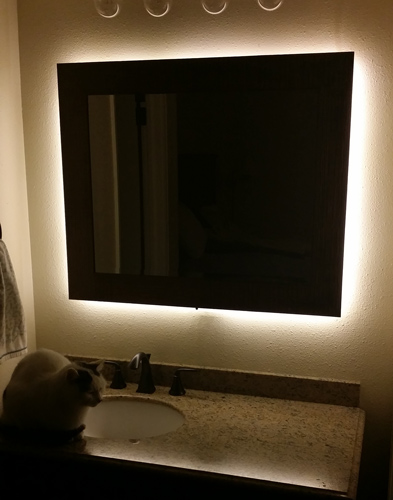
    Backlit-Mirror.jpg
    Hi Everyone,

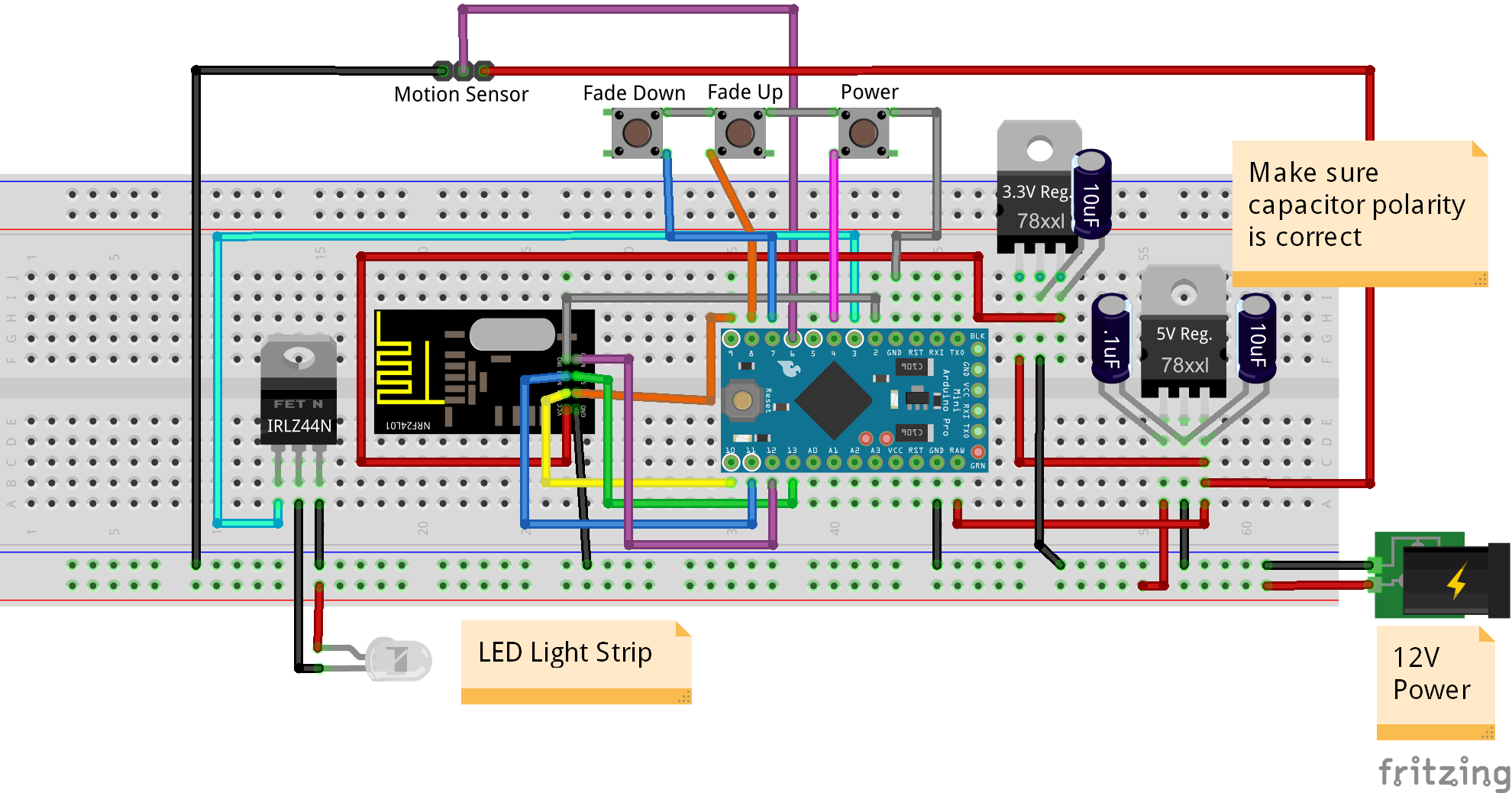
    I have created backlit mirror based on Bruce Lacey's dimmable LED sketch. I have added a motion sensor and some on/off and fade up/down buttons. There is some logic in the code to save the dim level when the buttons are pressed. I have all my motion turn on/off logic in my Vera controller using PLEG. It could be easily adapted to control the on/off functionality in the Arduino code but I like to have my automation logic in one place (my Vera).

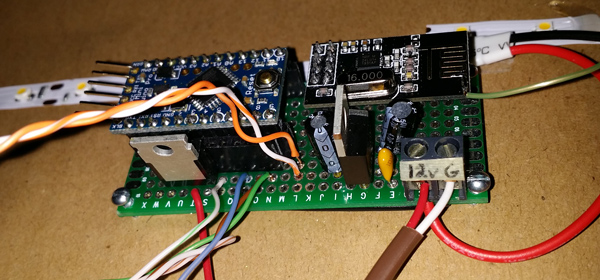
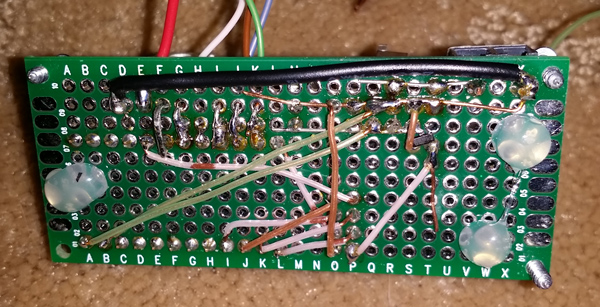
    This was a fun project to work on and although it looks pretty ugly from the back my wife loves the way it looks in our master bathroom. I tried to document as best I could but please let me know if you have any questions.

    Here is a list of the parts I used

    • Items from MySensors Store http://www.mysensors.org/store/
      • Female Pin Header Connector Strip
      • Prototype Universal Printed Circuit Boards (PCB)
      • NRF24L01 Radio
      • Arduino Pro Mini
      • FTDI USB to TTL Serial Adapter
      • Capacitors (10uf and .1uf)
      • 3.3v voltage regulator
      • 5v voltage regulator
      • IRLZ44N Logic Level Transistor MOSFET
      • 12v Transformer (power supply)
      • 5 Meter LED Strip (I used 3528)
      • HC-SR501 PIR Motion Sensor Module
    • 22-24 gauge wire or similar (I used Cat5/Cat6 cable)
    • 2 Pole 5mm Pitch PCB Mount Screw Terminal Block

    Here is a video explaining how to build it yourself.
    http://youtu.be/jblaMddRDpc

    Mirror LED Wiring Diagram.png
    Here is the Fritzing (http://fritzing.org/) wiring diagram file if you want to view in more detail: Mirror LED Wiring Diagram.fzz
    https://codebender.cc/sketch:81486

    20150203_201003-web.jpg
    20150203_195706-web.jpg

    My Project

  • How To: Automate Devices with Existing Buttons
    petewillP petewill

    I recently decided to see if I could automate my oven so I could turn it on/off and set the temperature remotely. The oven is electric and has a massive plug going into the wall (I think it's a 30A, 220V but I never checked). I figured the only way I would be comfortable doing this was to "press" the momentary push buttons in the existing circuitry. I did not want to add existing relays or anything of that nature. I thought it would be easy figure out how to "press" existing buttons with an Arduino but it was surprisingly difficult (for me at least) to find any info on the subject. So, I decided to make a how to video in case anyone else wants to attempt a similar project.

    The video is more generic and covers how to simulate a button press with an Arduino instead of a step by step guide on how to automate an oven. It's not specifically related to MySensors but hopefully it will be useful to someone out there who was like me looking to automate a device with pre-existing buttons.

    Video
    https://youtu.be/6bSFkKDxA18

    Wiring
    Here is a wiring diagram for each type of switch: ground side and voltage side.
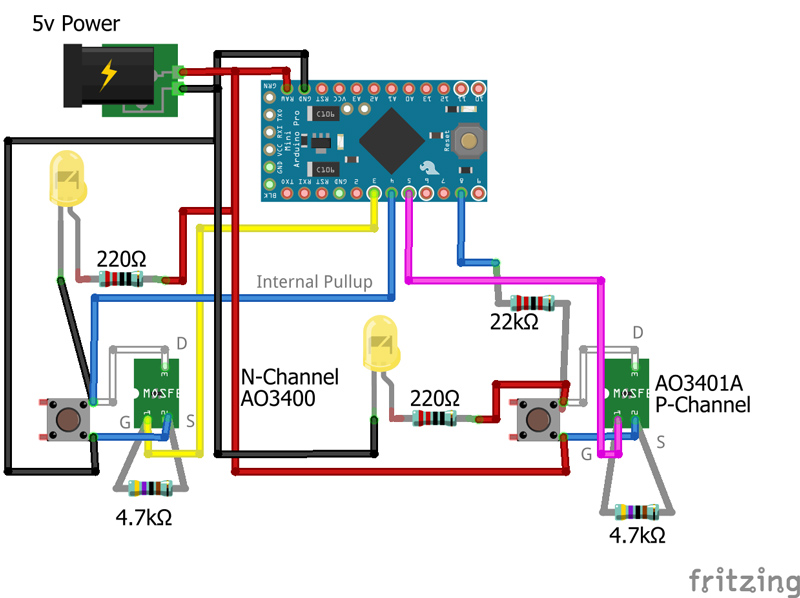
    0_1519332553056_Button-Hack-N-Channel-and-P-Channel.jpg

    MOSFETs
    I used the Alpha & Omega AO3401A (P-Channel) and AO3400 (N-Channel) MOSFETs for this project. They are very cheap. I got 100pcs of each type for around $3 total. Here is an example of where they can be found (but you may want to do some searching for the best price):
    https://www.aliexpress.com/item/Free-shipping-20pcs-SMD-mosfet-transistor-SOT-23-AO3401/32359403044.html?spm=a2g0s.9042311.0.0.ej97EO

    https://www.aliexpress.com/item/Free-shipping-20pcs-SMD-mosfet-transistor-SOT-23-AO3400/32360580221.html?spm=a2g0s.9042311.0.0.ej97EO

    Basic Demo Code

    #include <Bounce2.h>
    
    #define GND_GATE_PIN 3
    #define VCC_GATE_PIN 5
    #define GND_DETECT_PIN 4
    #define VCC_DETECT_PIN 8
    
    #define BUTTON_PRESS_DELAY 100 //The amount of delay used for a button press
    
    //Track button presses
    uint8_t gndValuePrev = 1;
    uint8_t vccValuePrev = 0;
    
    //LED button on/off tracking
    uint8_t gndLedOn = 0;
    uint8_t vccLedOn = 0;
    
    unsigned long gndMillis;
    unsigned long vccMillis;
    
    // Instantiate a Bounce object
    Bounce gndDebouncer = Bounce();
    Bounce vccDebouncer = Bounce();
    
    
    void setup() {
      Serial.begin(115200);
    
      //Setup the pins
      pinMode(GND_GATE_PIN, OUTPUT);
      pinMode(VCC_GATE_PIN, OUTPUT);
      pinMode(GND_DETECT_PIN, INPUT_PULLUP);
      pinMode(VCC_DETECT_PIN, INPUT);
    
      //Start with all outputs (buttons) not enabled (pressed)
      digitalWrite(GND_GATE_PIN, 0);
      digitalWrite(VCC_GATE_PIN, 1);
    
      // After setting up the buttons, setup debouncers
      gndDebouncer.attach(GND_DETECT_PIN);
      gndDebouncer.interval(50);
      vccDebouncer.attach(VCC_DETECT_PIN);
      vccDebouncer.interval(50);
    
    }
    
    void loop() {
      unsigned long currentMillis = millis(); //Get the current millis (used for timers)
    
      // Update the debouncers
      gndDebouncer.update();
      vccDebouncer.update();
    
      // Get the update value
      uint8_t gndValue = gndDebouncer.read();
      uint8_t vccValue = vccDebouncer.read();
    
      if (gndValue != gndValuePrev)
      {
        if (gndValue == 0)
        {
          Serial.println(F("Ground Button Pressed"));
          if (gndLedOn == 0)
          {
            //Don't echo the button push if it was turned on by the Arduino
            gndMillis = currentMillis + 1000;
            gndLedOn = 1;
          }
        }
        gndValuePrev = gndValue;
      }
      if (vccValue != vccValuePrev)
      {
        if (vccValue == 1)
        {
          Serial.println(F("VCC Button Pressed"));
          if (vccLedOn == 0)
          {
            //Don't echo the button push if it was turned on by the Arduino
            vccMillis = currentMillis + 1000;
            vccLedOn = 1;
          }
    
        }
        vccValuePrev = vccValue;
      }
    
      //Turn on led 1 second after button pressed
      if (gndLedOn == 1 && currentMillis > gndMillis)
      {
        nChannelPress(GND_GATE_PIN);
        gndLedOn = 0;
      }
    
      if (vccLedOn == 1 && currentMillis > vccMillis)
      {
        pChannelPress(VCC_GATE_PIN);
        vccLedOn = 0;
      }
    
    }
    
    void pChannelPress(uint8_t buttonPinName)
    {
      //Simulate a button press
      digitalWrite(buttonPinName, 0); //Ground to enable
      delay(BUTTON_PRESS_DELAY);
      digitalWrite(buttonPinName, 1); //VCC to disable
      delay(BUTTON_PRESS_DELAY);
    }
    
    void nChannelPress(uint8_t buttonPinName)
    {
      //Simulate a button press
      digitalWrite(buttonPinName, 1); //VCC to disable
      delay(BUTTON_PRESS_DELAY);
      digitalWrite(buttonPinName, 0); //Ground to enable
      delay(BUTTON_PRESS_DELAY);
    }
    

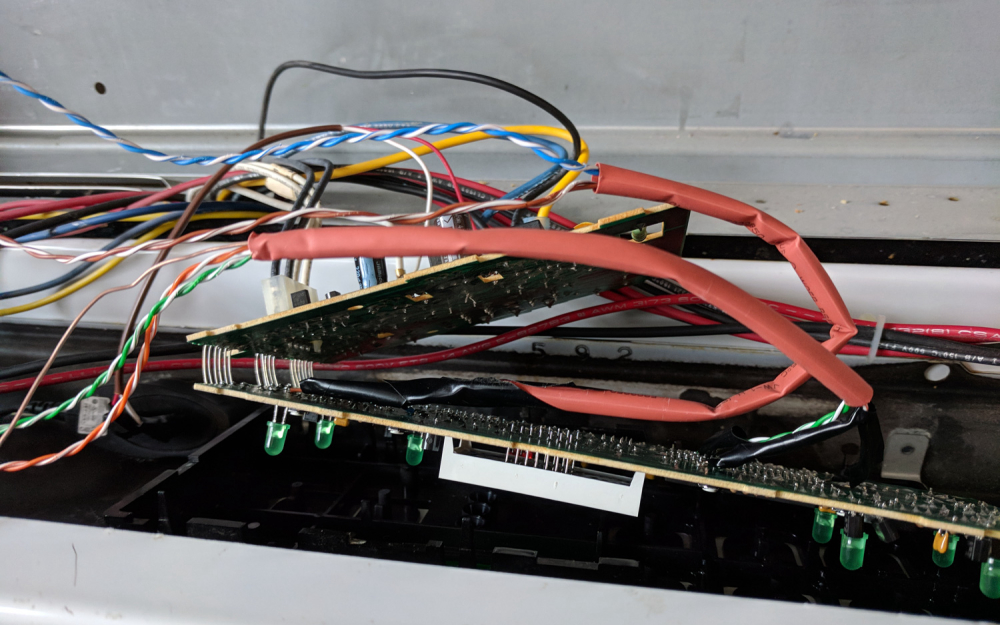
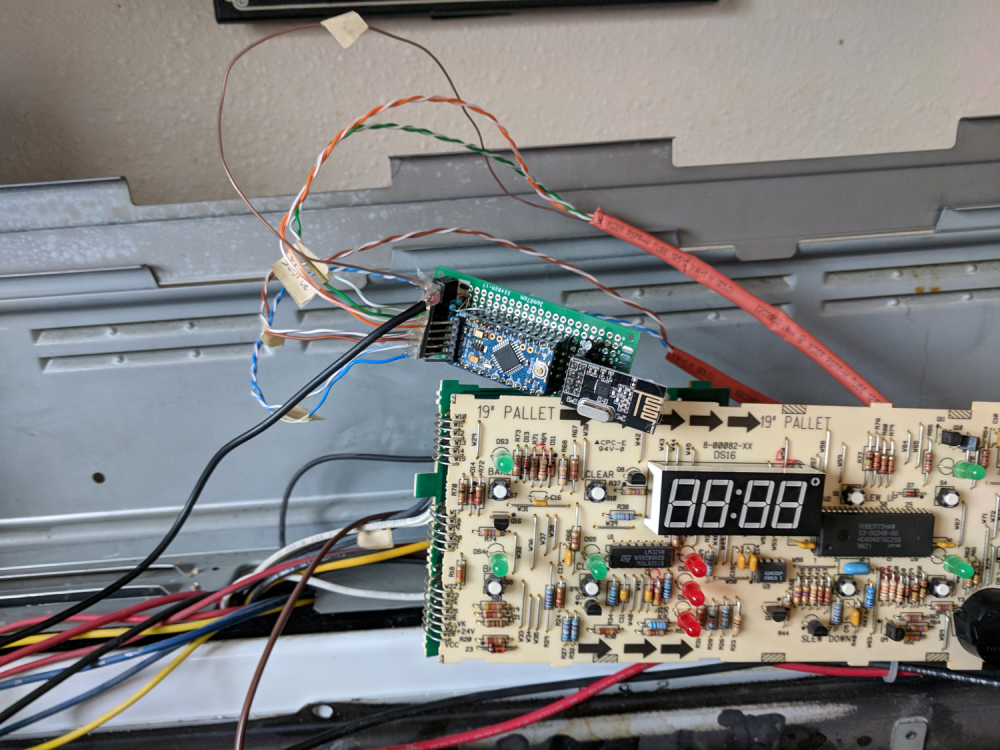
    In case you're interested, here is the code for my oven project as well as some pictures.
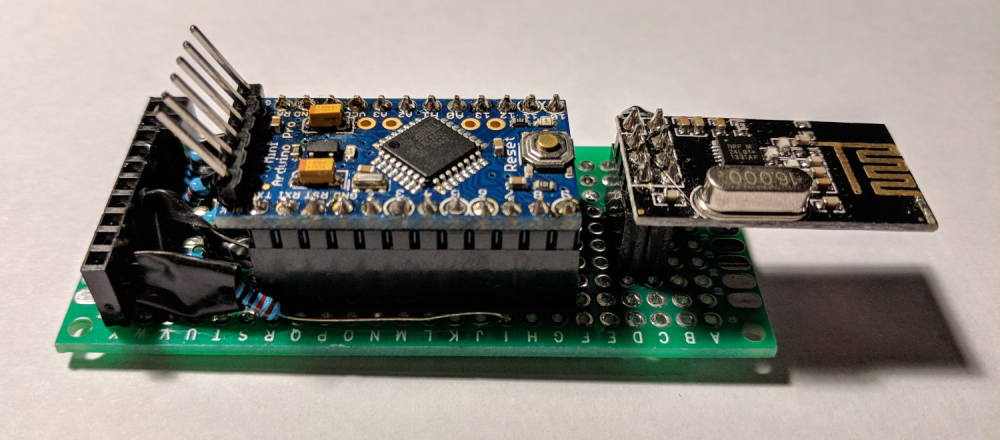
    0_1519331846902_OvenSensor01.jpg
    1_1519331846902_OvenSensor02.jpg
    2_1519331846902_OvenSensor03.jpg
    3_1519331846902_OvenSensor04.jpg
    4_1519331846902_OvenSensor05.jpg
    5_1519331846903_OvenSensor06.jpg

    Oven Code

    /*
       This will control physical buttons on a device.  In my case, an oven.  It will also read
       button presses and send the status back to the controller.  I used 4.7k resistors on the
       P-Channel MOSFET gate pins to hold them high (off) in case there are issues with the
       Arduino.  These can be omitted if you don't care if your switch floats (which you probably
       do).  I used larger resistors (somewhere around 20-30k) to detect a button press.
       These are connected to the drain side of the button/MOSFET
    
       Uses the bounce2 library to debounce the buttons
    
    */
    
    #define SKETCH_NAME "Oven Control"
    #define SKETCH_VERSION "1.0"
    
    // Enable debug prints to serial monitor
    //#define MY_DEBUG //MySensors debug messages
    //#define LOCAL_DEBUG //Code specific debug messages
    
    // Enable and select radio type attached
    #define MY_RADIO_NRF24
    //#define MY_RADIO_RFM69
    
    #define MY_RF24_PA_LEVEL RF24_PA_HIGH //Options: RF24_PA_MIN, RF24_PA_LOW, RF24_PA_HIGH, RF24_PA_MAX
    #define MY_RF24_CHANNEL  76
    //#define MY_NODE_ID 1  //Manually set the node ID here. Comment out to auto assign
    
    #include <MySensors.h>
    #include <Bounce2.h>
    
    
    #ifndef BAUD_RATE
    #define BAUD_RATE 115200
    #endif
    
    #ifdef LOCAL_DEBUG
    #define dbg(...)   Serial.print(__VA_ARGS__)
    #define dbgln(...) Serial.println(__VA_ARGS__)
    #else
    #define dbg(x)
    #define dbgln(x)
    #endif
    
    #define DWELL_TIME 50 //value used in all wait calls (in milliseconds) this allows for radio to come back to power after a transmission, ideally 0
    
    #define CHILD_ID_OVEN 0
    
    #define CANCEL_PIN 3
    #define BAKE_PIN 4
    #define UP_PIN 5
    #define DOWN_PIN 6
    #define OVEN_OFF_PIN 7 //GPIO Pin for detecting when the physical "off" button is pressed at the oven
    #define OVEN_ON_PIN 8 //GPIO Pin for detecting when the physical "on" button is pressed at the oven
    
    #define BUTTON_ON 0  // GPIO value to write for simulating a button press (0 for P-Channel MOSFET)
    #define BUTTON_OFF 1 // GPIO value to write for simulating a button not pressed (1 for P-Channel MOSFET)
    #define PRESSED 1 //The value that is received when the physical butons are pressed (1 for P-Channel MOSFET)
    
    #define HEAT_LOW_LIMIT 170 //The lowest temp the heat can be set to
    #define HEAT_HIGH_LIMIT 550 //The highest temp the heat can be set to
    #define OVEN_ON_TEMP 350 //The default temp that the oven is set to when first turned on
    #define DELAY_OVEN_CHANGE 5000 //The amount of time to wait for additional commands from gateway before applying previous commands (give time for user to fine tune temperature)
    #define BUTTON_PRESS_DELAY 100 //The amount of delay used for a button press
    #define TEMP_INCREMENT 5 //Degrees to increment with each button press
    
    MyMessage msgHeatMode(CHILD_ID_OVEN, V_HVAC_FLOW_STATE);
    MyMessage msgHeatSetpoint(CHILD_ID_OVEN, V_HVAC_SETPOINT_HEAT);
    
    uint16_t heatSetPoint = HEAT_LOW_LIMIT; //The current oven heat set point. Default is HEAT_LOW_LIMIT if no value is received from gateway.
    //uint16_t heatSetPointPrev = HEAT_LOW_LIMIT; //The previous oven heat set point. Default is HEAT_LOW_LIMIT if no value is received from gateway.
    uint8_t ovenStatus = 0; //The current status of the oven 1 = on, 0 = off
    uint8_t ovenStatusPrev = 0; //The previous status of the oven 1 = on, 0 = off
    uint8_t ovenStateCommand = 2; //used to track oven on/off commands from controller
    uint8_t receivedCommand = 0; //Used to get config states from controller at start up
    unsigned long commandDelayMillis; //Used to track delay time before the received commands are applied
    unsigned long sendDelayMillis; //Wait to update the controller with on/off status until the automation is done
    
    // Instantiate a Bounce object
    Bounce onDebouncer = Bounce();
    Bounce offDebouncer = Bounce();
    
    
    void before()
    {
    #ifdef LOCAL_DEBUG
      Serial.begin(BAUD_RATE);
    #endif
    }
    
    void presentation()
    {
      // Send the sketch version information to the gateway
      sendSketchInfo(SKETCH_NAME, SKETCH_VERSION);
    
      // Register all sensors to gw (they will be created as child devices)
      present(CHILD_ID_OVEN, S_HEATER);
      wait(DWELL_TIME);
      //metric = getConfig().isMetric; //This has been removed as it will default to metric if connection to the gateway is not established (bad for imperial users)
      //wait(DWELL_TIME);
    }
    
    void setup() {
      //Setup the pins
      pinMode(CANCEL_PIN, OUTPUT);
      pinMode(BAKE_PIN, OUTPUT);
      pinMode(UP_PIN, OUTPUT);
      pinMode(DOWN_PIN, OUTPUT);
      pinMode(OVEN_ON_PIN, INPUT);
      pinMode(OVEN_OFF_PIN, INPUT);
    
      //Start with all outputs (buttons) not enabled (pressed)
      digitalWrite(CANCEL_PIN, BUTTON_OFF);
      digitalWrite(BAKE_PIN, BUTTON_OFF);
      digitalWrite(UP_PIN, BUTTON_OFF);
      digitalWrite(DOWN_PIN, BUTTON_OFF);
    
      // After setting up the buttons, setup debouncers
      onDebouncer.attach(OVEN_ON_PIN);
      onDebouncer.interval(1);
      offDebouncer.attach(OVEN_OFF_PIN);
      offDebouncer.interval(5);
    
      uint8_t reqCounter = 0;
      while (receivedCommand == 0)
      {
        dbgln("Requesting heat setpoint");
        request(CHILD_ID_OVEN, V_HVAC_SETPOINT_HEAT); //Request state from gateway
        wait(500);
        reqCounter++;
        if (reqCounter > 5)
        {
          dbgln("Failed to get heat setpoint!");
          break;
        }
      }
      wait(5000); //Wait for 10 seconds to give time for commands to be received (so the oven doesn't turn on when the microcontroller starts)
      receivedCommand = 0;
    }
    
    void loop() {
      unsigned long currentMillis = millis(); //Get the current millis (used for timers)
    
      // Update the debouncers
      onDebouncer.update();
      offDebouncer.update();
    
    
      // Get the update value
      uint8_t onValue = onDebouncer.read();
      uint8_t offValue = offDebouncer.read();
    
      if (onValue == 1)
      {
        ovenStatus = 1;
        sendDelayMillis = currentMillis;
        dbgln(F("On Pressed"));
      }
      if (offValue == 1)
      {
        ovenStatus = 0;
        sendDelayMillis = currentMillis;
        dbgln(F("Off Pressed"));
      }
    
      if (ovenStatus != ovenStatusPrev && currentMillis - sendDelayMillis > 1000)
      {
        //Send new ovenStatus to gateway
        send(msgHeatMode.set(ovenStatus == 1 ? "HeatOn" : "Off"));
        dbgln(ovenStatus);
        ovenStatusPrev = ovenStatus;
      }
    
    
      if (receivedCommand)
      {
        //Received a command to turn on/off the oven
        if (ovenStateCommand == 0)
        {
          //Turn off the oven right away (no delay necessary)
          buttonPress(CANCEL_PIN);
          receivedCommand = 0;
          ovenStateCommand = 2; //Set to some number other than 1 or 0 to allow oven to be adjusted when the heatSetPoint changed
          ovenStatus = 0;
        }
        else
        {
          //We need to turn on and/or change the temp but we want to wait for all the commands to come in first (DELAY_OVEN_CHANGE time)
          if (currentMillis - DELAY_OVEN_CHANGE > commandDelayMillis)
          {
            if (ovenStateCommand == 1 || ovenStatus == 1)
            {
              //The oven is either on or should be on. Since we are not keeping track of the temperature
              //we need to turn the oven off then back on to ensure we get the correct temp
              buttonPress(CANCEL_PIN);
              //Now, turn it on and adjust the temp to the correct setting
              buttonPress(BAKE_PIN);
              wait(BUTTON_PRESS_DELAY * 2); //wait for the oven to turn on before adjusting temp
              buttonPress(UP_PIN); //Oven starts at 0 so we need to press a button to start at OVEN_ON_TEMP
              wait(BUTTON_PRESS_DELAY * 2);
              uint16_t tempChange = OVEN_ON_TEMP;
              if (heatSetPoint < OVEN_ON_TEMP)
              {
                //The temp should be adjusted lower (also rounding to nearest TEMP_INCREMENT)
                while (tempChange > heatSetPoint + (TEMP_INCREMENT / 2))
                {
                  buttonPress(DOWN_PIN);
                  wait(BUTTON_PRESS_DELAY);
                  dbg(F("Lowered temp to: "));
                  dbgln(tempChange);
                  tempChange -= TEMP_INCREMENT;
                }
              }
              else
              {
                //The temp should be adjusted lower (also rounding to nearest TEMP_INCREMENT)
                while (tempChange < heatSetPoint - (TEMP_INCREMENT / 2))
                {
                  buttonPress(UP_PIN);
                  wait(BUTTON_PRESS_DELAY * 2);
                  dbg(F("Raised temp to: "));
                  dbgln(tempChange);
                  tempChange += TEMP_INCREMENT;
                }
              }
              send(msgHeatSetpoint.set(tempChange)); //Send value to gateway
              ovenStatus = 1;
            }
            receivedCommand = 0;
            ovenStateCommand = 2; //Set to some number other than 1 or 0 to allow oven to be adjusted when the heatSetPoint changed
    
          }
        }
      }
    }
    
    void receive(const MyMessage &message)
    {
      dbg(F("msg data: "));
      dbgln(String(message.data));
    
      if (message.isAck()) {
        dbgln(F("Ack from gateway"));
      }
    
      if (message.type == V_HVAC_FLOW_STATE && !message.isAck()) {
    
        //find the mode
        if (String(message.data) == "Off")
        {
          ovenStateCommand = 0;
        }
        else if (String(message.data) == "HeatOn")
        {
          ovenStateCommand = 1;
        }
        else
        {
          dbgln(F("Invalid state received"));
        }
        dbg(F("Oven state: "));
        dbgln(ovenStateCommand);
        commandDelayMillis = millis();
        receivedCommand = 1;
      }
    
    
      if (message.type == V_HVAC_SETPOINT_HEAT && !message.isAck()) {
    
        uint16_t value = atoi(message.data);
        if (value < HEAT_LOW_LIMIT)
        {
          heatSetPoint = HEAT_LOW_LIMIT;
        }
        else if (value > HEAT_HIGH_LIMIT)
        {
          heatSetPoint = HEAT_HIGH_LIMIT;
        }
        else
        {
          heatSetPoint = value;
        }
        dbg(F("Heat setpoint: "));
        dbgln(heatSetPoint);
    
        commandDelayMillis = millis();
        receivedCommand = 1;
      }
    }
    
    void buttonPress(uint8_t buttonPinName)
    {
      //Simulate a button press
      digitalWrite(buttonPinName, BUTTON_ON);
      wait(BUTTON_PRESS_DELAY);
      digitalWrite(buttonPinName, BUTTON_OFF);
      wait(BUTTON_PRESS_DELAY);
    }
    
    My Project

  • Cheap voice control using AutHomation, AutoVoice and Tasker (Video)
    petewillP petewill

    Hey Everyone,

    This doesn't pertain directly to MySensors but I know that some people out there use Vera like me (this could work for other controllers too as long as they have a plugin for Tasker). I made a 'how to" video on controlling your home with your voice. The control isn't always perfect but it's an easy and cheap solution! Hope it helps someone.

    On a side note, this is the most fun hobby I have had in a long time. I feel like a kid building a fort again :)

    http://youtu.be/P3QkGh8L2Mg

    Vera

  • What did you build today (Pictures) ?
    petewillP petewill

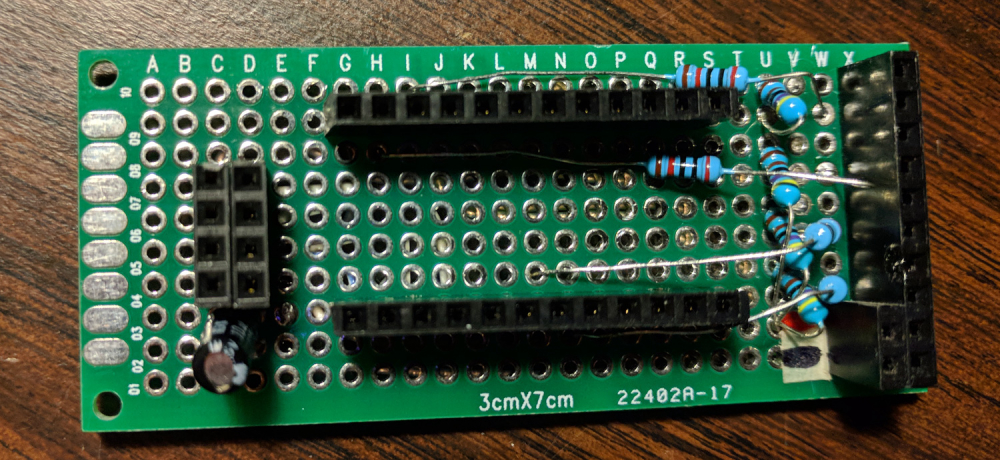
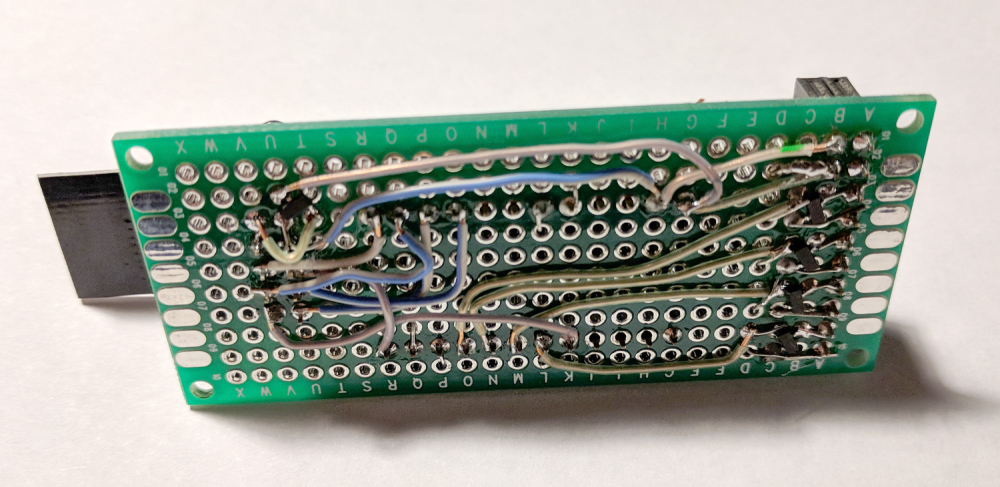
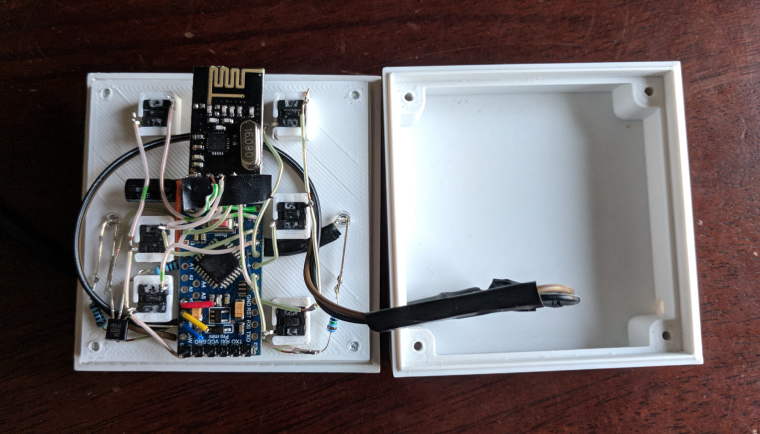
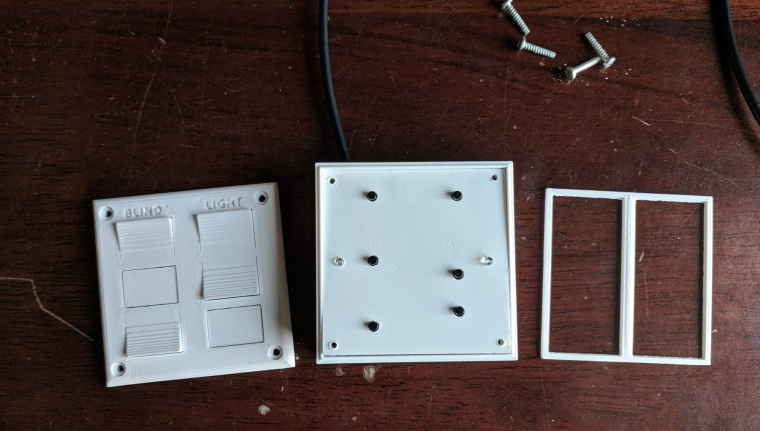
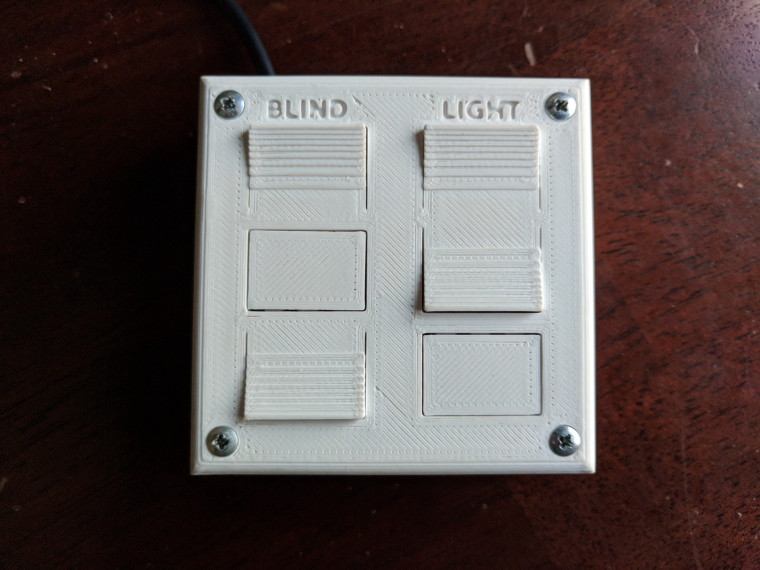
    My son and I finally finished his first MySensors project- a remote control for his room. He wasn't too interested but you have to start somewhere right...? :)
    Question for you all... what are you doing (if anything) to vent the fumes from soldering? I haven't really been worried about it in the past but it makes me nervous with my son doing it with me.
    Anyway, here are the pictures.

    0_1518837057065_IMG_20180216_171013.jpg
    0_1518837070467_IMG_20180216_171125.jpg
    0_1518837089935_IMG_20180216_171709.jpg

    General Discussion

  • 💬 Rain Gauge
    petewillP petewill

    I am currently upgrading my devices to 2.0 using the 1.6.12 IDE. I'll try to work on this one in the next few days and post an update.

    Announcements

  • Still not going well for me.
    petewillP petewill

    @Coffeesnob Yeah, I would order a couple of Nanos (or Pro Minis). They are cheap and are always helpful for troubleshooting.
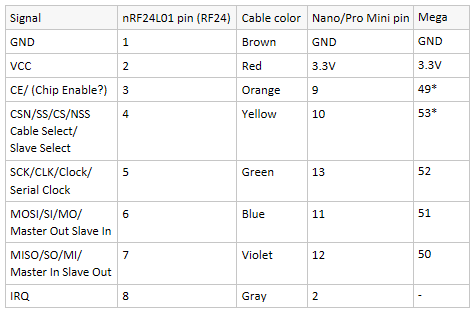
    Here is how I have my devices wired:
    0_1485012164542_upload-fb984670-b18c-497b-9167-e19bfd517a28
    *need to configure these pins in the sketch

    Here is the code you will need to configure the sketch of the Mega. Make sure to put these lines above the #include <MySensors.h> line.
    #define MY_RF24_CE_PIN 49
    #define MY_RF24_CS_PIN 53
    You should not need to change anything in MyConfig.h if you wire as described above.

    The Nano can be wired as described above and no changes need to be made in your sketch or MyConfig.h. This code assumes you are using MySensors 2.x.

    I hope that makes sense.

    As for a MYSController video, I'm not aware of any out there yet. I have it on my list of videos to make but it's not at the top...

    Troubleshooting

  • 💬 Rain Gauge
    petewillP petewill

    I finally finished with the update and it has been merged to the MySensors github. Here is the link: https://github.com/mysensors/MySensorsArduinoExamples/tree/master/examples/RainGauge
    You will also need to download the updated Time library here: https://github.com/mysensors/MySensorsArduinoExamples/tree/master/libraries/Time

    Let me know if you run into any issues.

    Announcements

  • Controlling Blinds.com RF Dooya Motors with Arduino and Vera
    petewillP petewill

    @C.r.a.z.y. Yeah, I couldn't get the automatic "sniffers" to work for me either. Hopefully you're able to get it working. Remember, just focus on sending the 1's and 0's pattern. Start your code with that then expand when you get that part working. One thing that may help is to record what you're sending in Audacity again. That way you can compare the waveforms and see what needs to be modified with the code.

    My Project

  • [SOLVED] After upgrade to mysensors 2.1 problems with radio module might manifest itself more.
    petewillP petewill

    @Nicklas-Starkel I recently updated my Mega sensor (that had been running for months without any issues) to 2.1 and experienced issues with NACKs too. It would work for a little while (half a day or so) then the NACKs would start appearing. A few hours after the NACKs showed up it would then only produce NACKs. I seemed to have finally resolved the issue by switching the 4.7uF capacitor with a 47uF on the NRF radio. It has been running for 3 days without a single NACK. I know it's not the same issue you're having but maybe something to try. By the way, the capacitor is soldered right to the radio pin headers.

    Troubleshooting

  • Rain Guage
    petewillP petewill

    @BulldogLowell said:

    their four-byte size on arduino make for a huge eeprom storage buffer that we really don't need

    Good to know! I still have a lot to learn about all this stuff. It's definitely fun.

    terrific, glad to see it make its way into the real world!

    Yes, me too! I'm happy to report it's working. It rained 6.4mm last night. SO COOL!

    My Project
  • Login

  • Don't have an account? Register

  • Login or register to search.
  • First post
    Last post
0
  • MySensors
  • OpenHardware.io
  • Categories
  • Recent
  • Tags
  • Popular